Unsloth Studio: running, fine-tuning and exporting models without code
Hi!
Unsloth Studio is a free, open-source program in which you run, fine-tune and export open models through a browser window, without a single line of code. Everything runs on your computer: the models, the data and the conversations never leave it.
This article is for people who have already run models locally or are about to, and want to understand what Studio can do and how to work with it. The main part is fine-tuning: a text model on your own data and a vision model on images, with every setting and the result.
Everything described here was run on a laptop with an NVIDIA RTX 5070 Ti and 12 GB of video memory, Unsloth version 2026.11.10 of 23 November 2026. The models in the examples are Gemma 4 from Google and Z-Image-Turbo.
What it is and what it consists of
Unsloth began as a Python library that speeds up fine-tuning and saves video memory. How it works and what training looks like in code is covered in the article on LoRA. Studio is a graphical shell over the same library, released in March 2026. Since then it has grown from a "window for training" into an all-in-one tool:
| Section | What you do there |
|---|---|
| Chat | Talk to a model: files and images, web search, code execution, comparing two models |
| Model hub | Search and download models from Hugging Face, with a hint of what will fit in memory |
| Train | Fine-tune text, vision and audio models and embedding models |
| Recipes | Build a training dataset from documents with the help of another model |
| Export | Save the result: an adapter, a merged model or GGUF |
| Images, Video | Generate and edit images and video, train your own LoRAs for them |
| Audio | Text to speech, voice cloning, speech transcription, music |
| API | An OpenAI- and Anthropic-compatible server for your own programs and agents |
Inside Studio, models in GGUF format are run by llama.cpp; training is done by PyTorch and the Hugging Face libraries.
License. The Unsloth library is distributed under Apache 2.0, and the Studio interface under AGPL-3.0. For personal use and use inside a company this changes nothing; you cannot embed Studio in a closed product without opening the code.
Status. Studio is labeled BETA and develops fast: updates come out several times a week. The "default" values in this article are taken from the screen of version 2026.11.10 and may differ in yours.
Hardware requirements
- Chat only and data preparation work on any computer, including a CPU without a graphics card and a Mac.
- Training requires a graphics card: NVIDIA, AMD or Intel, or a Mac on Apple Silicon.
- Video memory. For fine-tuning a model of 2–5 billion parameters in 4 bits, 8–12 GB is enough. Studio itself marks the models that will not fit.
- Disk. Plan for 60–80 GB: the program itself, models of 5–10 GB each and intermediate export files.
Installation and first launch
There are three ways. The simplest is the Unsloth Desktop app from the download page: an ordinary installer for Windows, macOS and Linux. The second is a terminal command that installs Studio as a web server.
Windows, in PowerShell:
irm https://unsloth.ai/install.ps1 | iexmacOS, Linux and WSL:
curl -fsSL https://unsloth.ai/install.sh | shThe same command updates an already installed Studio. After installation the server is started by the command unsloth studio, and the interface opens at http://127.0.0.1:8888.
The third way is a ready-made Docker image. It changes nothing in the system, and this is how Studio was run for this article:
docker run -d --name unsloth --gpus all --ipc=host \ --ulimit memlock=-1 --ulimit stack=67108864 \ -p 8000:8000 -p 8888:8888 \ -e JUPYTER_PASSWORD="mypassword" \ -v "$PWD":/workspace/host \ -v "$HOME/.cache/huggingface":/workspace/.cache/huggingface \ -v unsloth-studio:/opt/unsloth-studio \ unsloth/unslothWhat matters here:
- Port 8000 is Studio, port 8888 is JupyterLab with ready-made Unsloth notebooks.
- Three volumes hold what must survive the removal of the container: your folder, the downloaded models and Studio's own data (chats, training runs, exports).
- Size. The image downloads as 11 GB and takes 33.5 GB on disk.
- Windows. You need Docker Desktop with the WSL 2 engine and a recent NVIDIA driver; a separate NVIDIA Container Toolkit is not needed.
The container creates the password for the first login itself and prints it to the log:
docker logs unslothLook for the line Unsloth Studio login in the log. The user name is unsloth. On first login Studio asks you to change the password, and you cannot put this off: with the default password the server stops by itself after 60 minutes. A forgotten password is reset by the command:
docker exec unsloth unsloth studio reset-password --username unslothThe interface language is changed in Settings → General → Display language. The list has 25 languages.
The model catalog
The Model hub section is a Hugging Face search built into the program. At the top of the page Studio shows what the computer has: video memory, RAM, CPU cores.
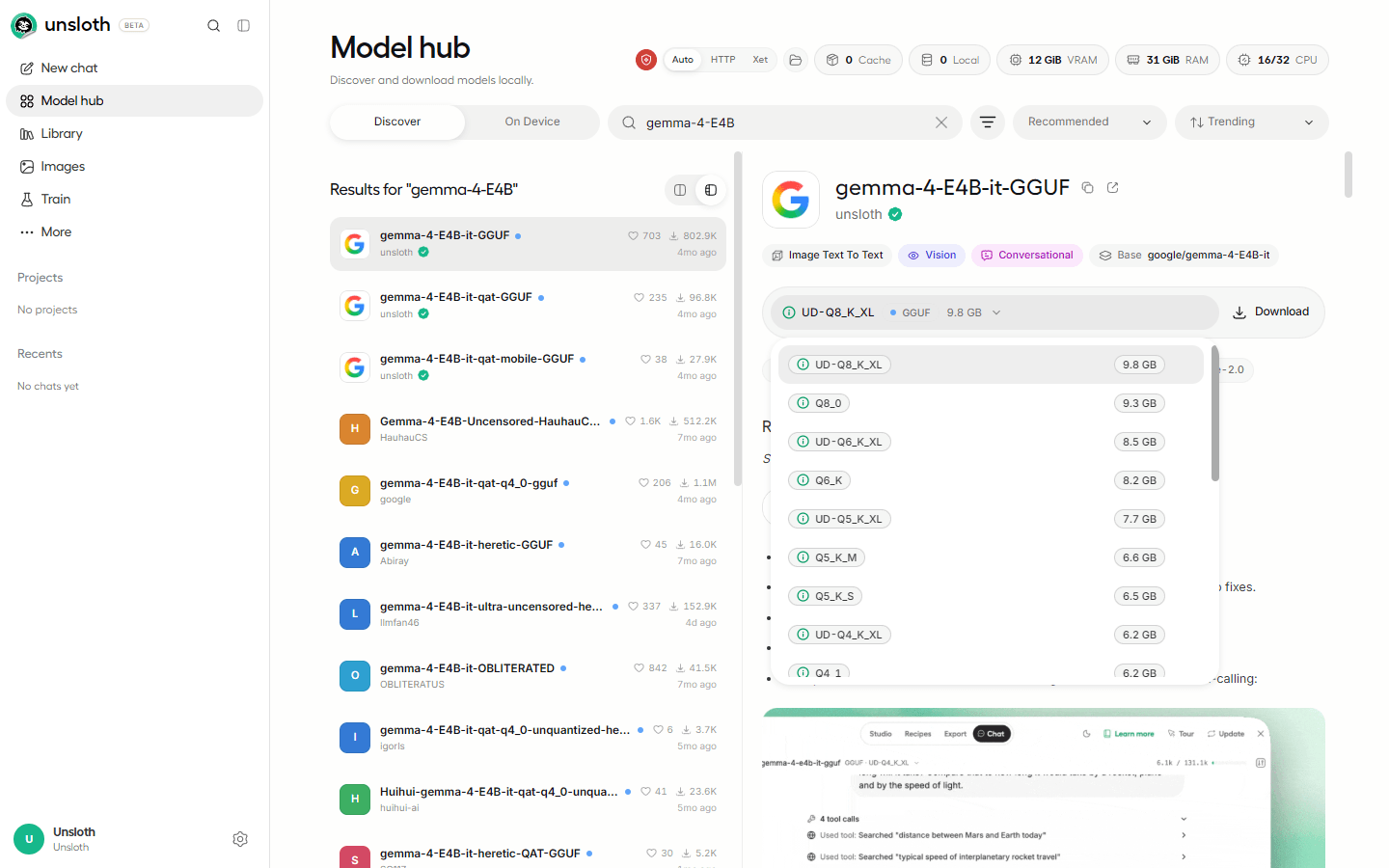
On the left are the search results, on the right the model card with the authors' description. The main thing in the card is the list of quantization variants. Quantization compresses the model's weights: the fewer bits per number, the smaller the file and the lower the accuracy. The formats and labels such as Q4_K_M are covered in detail in the article on inference engines. To start, one rule is enough: take a variant around Q4 that fits in video memory with room to spare.
For the examples, Gemma 4 E4B was downloaded in the UD-Q4_K_XL variant, 6.2 GB. The On Device tab shows what has already been downloaded. Studio finds models downloaded earlier through Hugging Face or LM Studio by itself; you can add your own models folder in the model picker.
Chat
The chat looks familiar: an input field, and a list of conversations on the left. The model is chosen with a button in the input field and loads into memory in a few seconds.
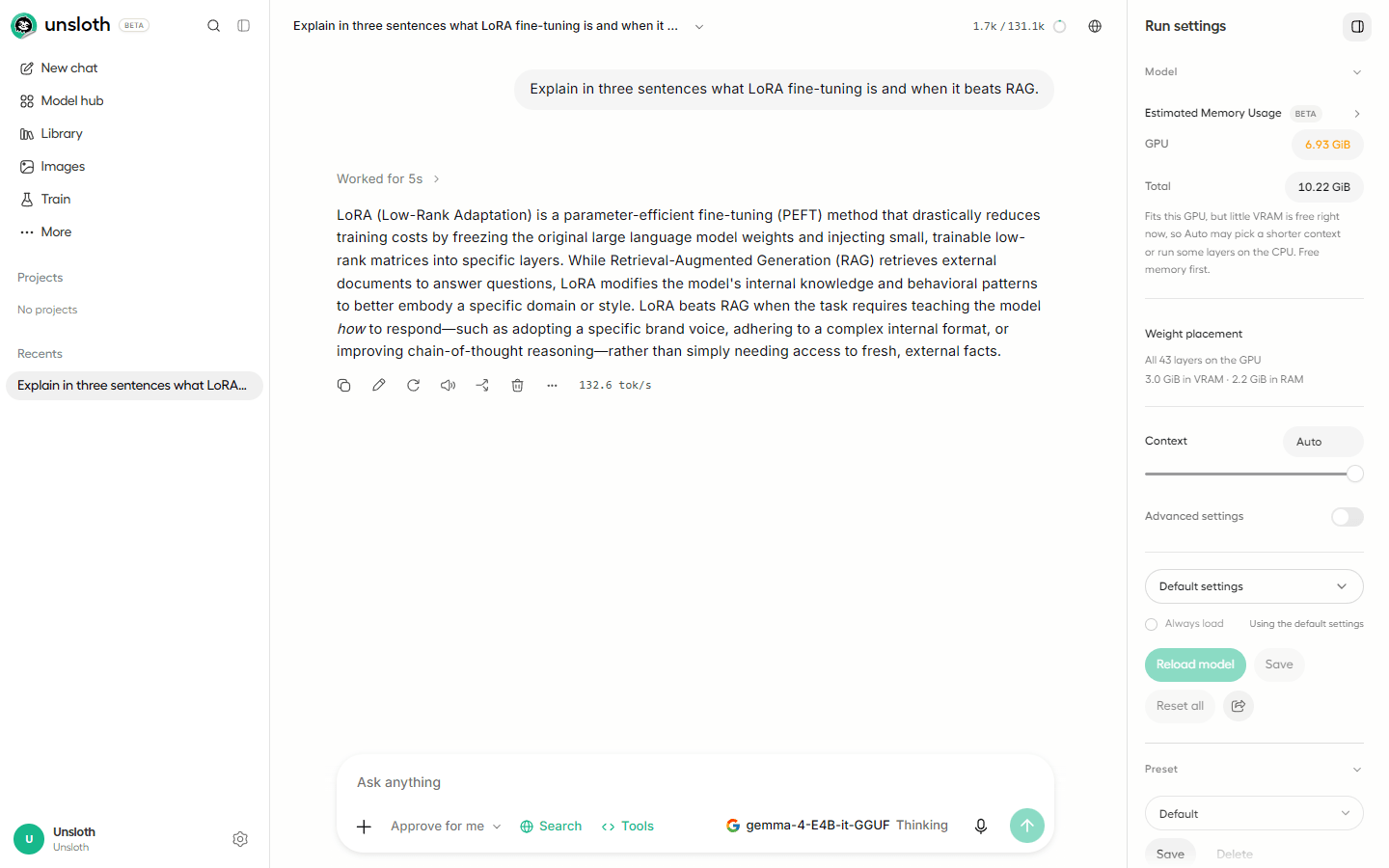
The Run settings panel is open on the right. It contains:
- Memory. An estimate of how much the model will take on the graphics card and in total, and how many layers ended up on the graphics card. Here Gemma 4 E4B took about 7 GB of video memory and answered at 130–165 tokens per second.
- Context.
Autoby default: llama.cpp allocates memory for the context as needed. - Sampling. Temperature, top-p, top-k and the rest. For known models the values are filled in automatically.
- System prompt and presets, to save a set of settings.
Under each answer are the generation speed and buttons: copy, edit the answer, regenerate, read aloud, branch the conversation.
Tools and permissions
In chat the model can do more than write text. The Search and Tools buttons in the input field turn on web search and code execution. The "plus" menu also offers Deep research, conversation over a set of files, browser control and Skills.
Below, the model was asked to calculate the 60th Fibonacci number. It wrote a Python program itself, ran it and answered based on the result:
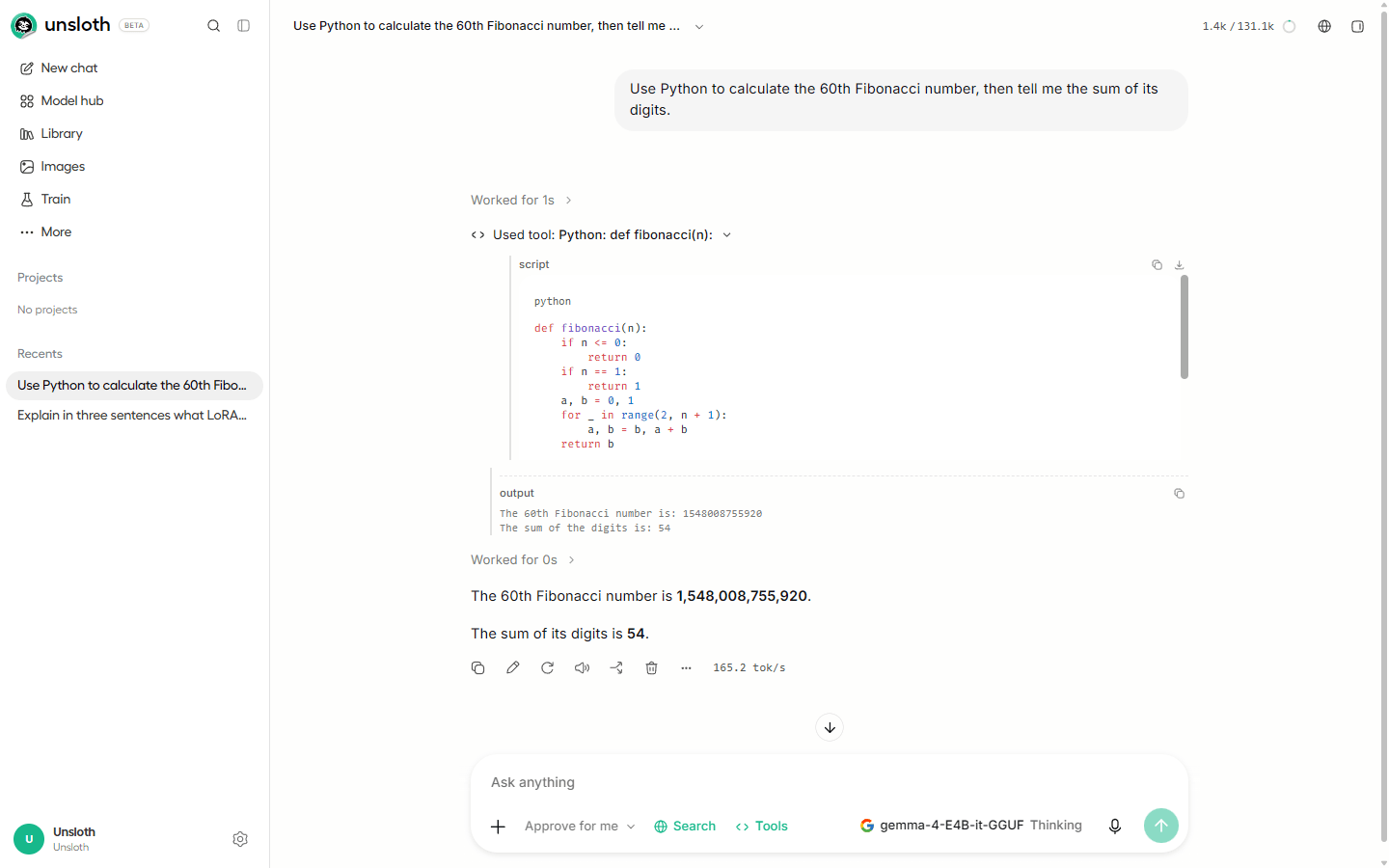
The answer is correct: 1,548,008,755,920, digit sum 54. Without running code, a small model usually gets such tasks wrong, because it calculates "in its head". How a model calls tools at all is explained in the article on RAG and function calling.
The code the model writes runs on your computer, so there is a permissions switch next to the input field:
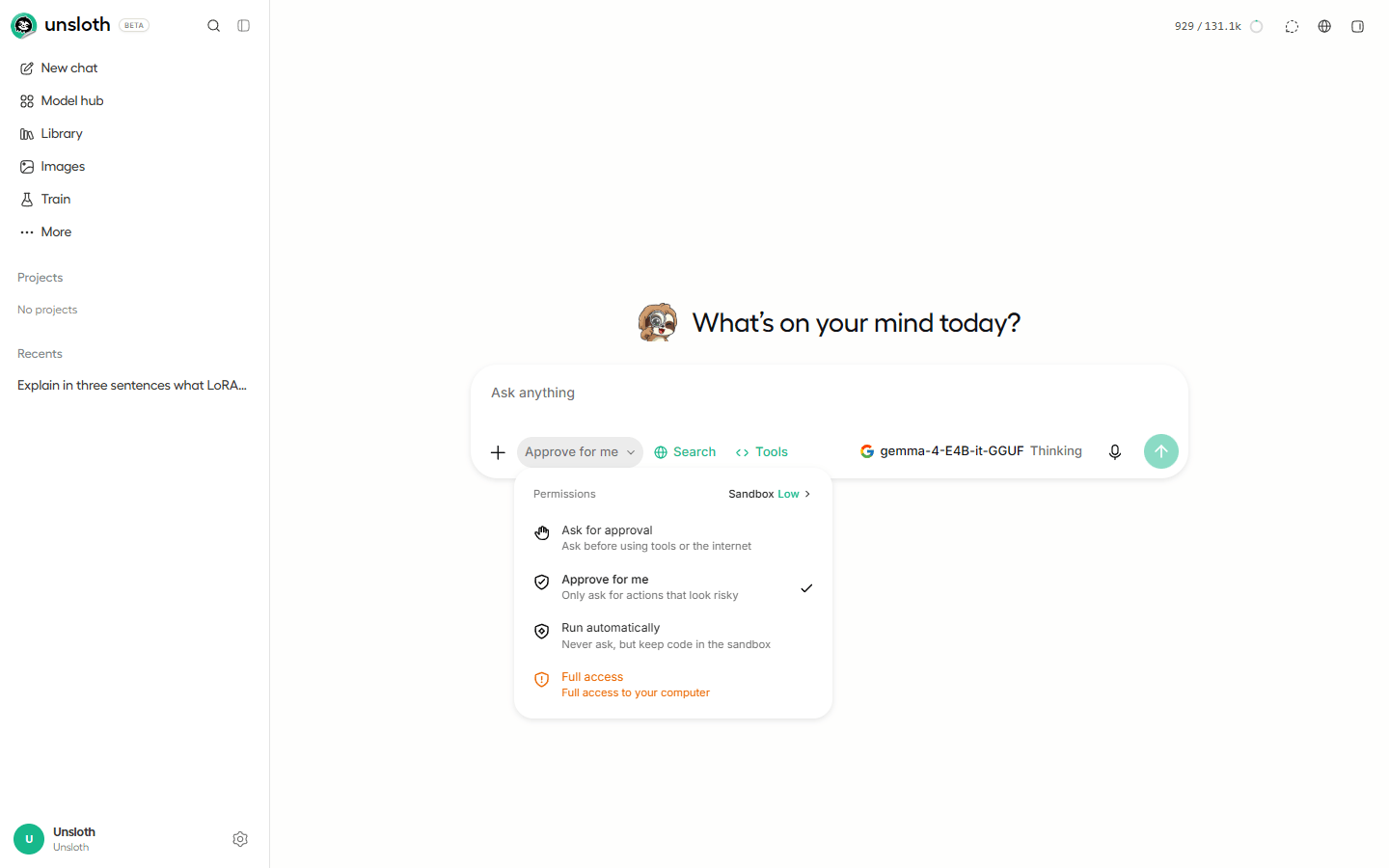
| Mode | What happens |
|---|---|
| Ask for approval | Asks before every tool and every access to the internet |
| Approve for me | Asks only about actions that look dangerous |
| Run automatically | Does not ask, but keeps the code in a sandbox |
| Full access | Full access to the computer with no restrictions |
The sandbox has two levels. Low is software checks of commands. High is isolation enforced by the operating system: bubblewrap on Linux, Seatbelt on macOS, MXC on Windows 11.
Tools also change the request itself: a long service description is added to it. For an ordinary model this goes unnoticed, but for a fine-tuned one it can matter — there is an example below, in the section on export.
Images in chat
If the model understands images, you can attach a picture to a message: through "plus" → Add photos & files, or by dragging a file into the window. Gemma 4 is exactly such a model. It was given a screenshot of a monitoring dashboard with graphs:
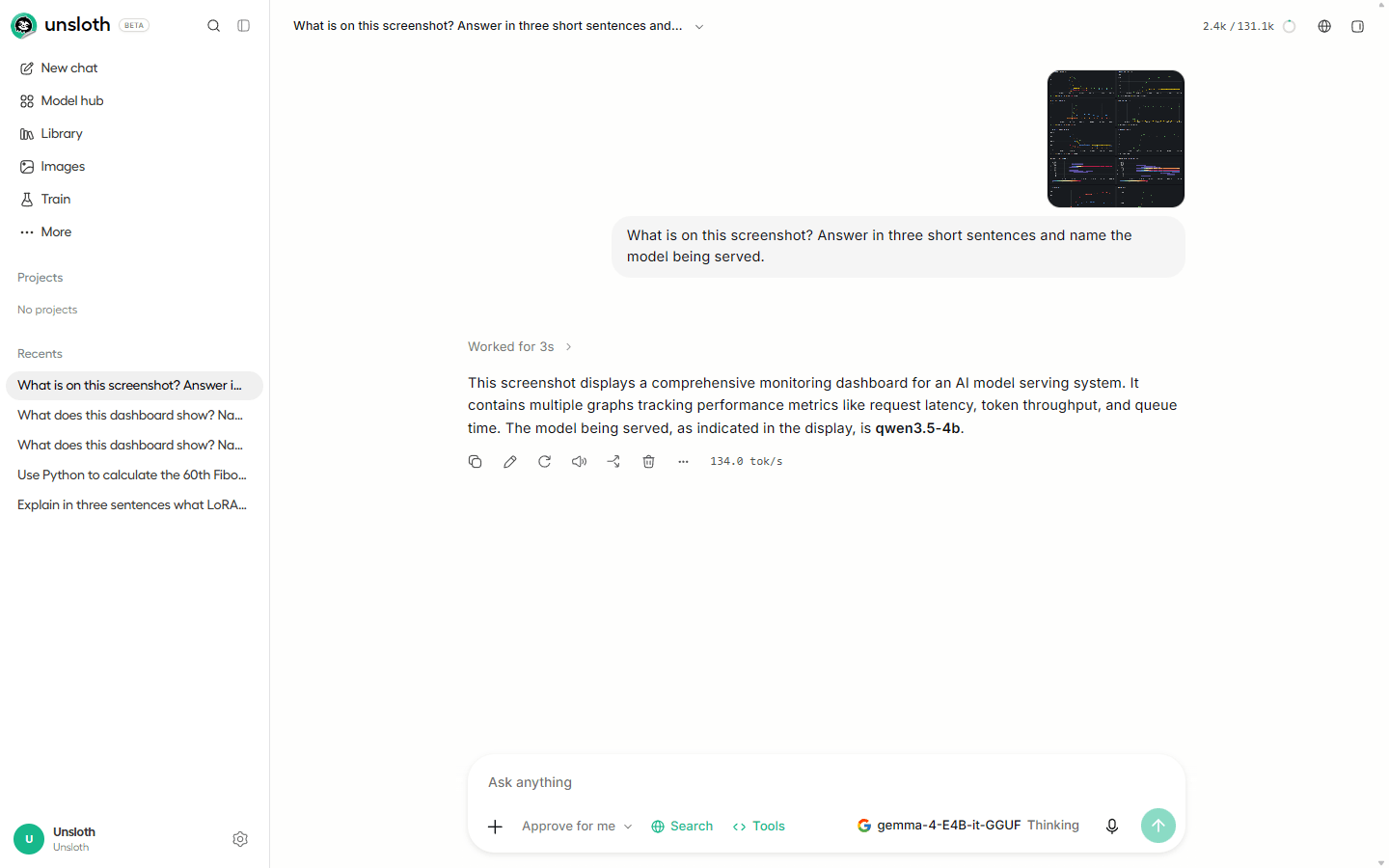
The model described the content correctly and read the name of the served model off the picture. In another conversation it listed all ten graphs by their titles.
Besides images, you can attach PDF, DOCX, code files and audio to a message. For a large set of documents there are projects: a folder is attached to a project, and Studio indexes the files and checks for changes every 30 seconds.
Fine-tuning a text model
The task is the same as in the article on LoRA: teach the model a fact it does not know — a cat's name. There it was done in code, here with the mouse, and the results can be compared. What LoRA and QLoRA are, the adapter rank and the epoch are explained there; here is only what to click and what you get.
The whole path takes five steps:
model → data → parameters → training → comparison with the original modelStep 1. Model and method
In the Train section you first choose a model. You need a model in safetensors format: GGUF is only good for running, you cannot train it.
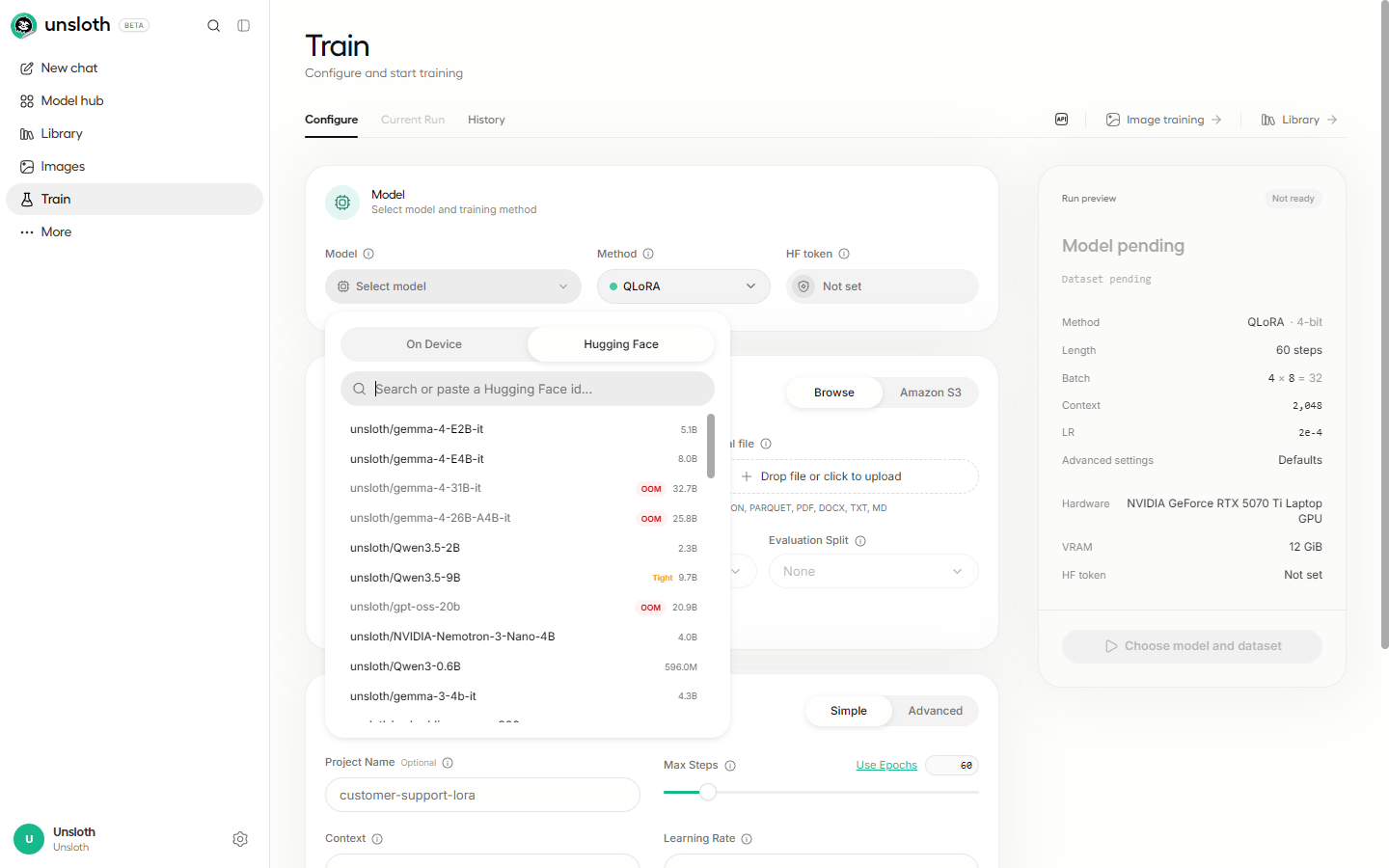
The OOM label means the model will not fit in video memory, Tight that it will fit just barely. unsloth/gemma-4-E2B-it is chosen, 5.1 billion parameters.
Next to it is the training method:
| Method | What is trained | Memory |
|---|---|---|
| QLoRA | An adapter on top of a model compressed to 4 bits | Least |
| LoRA | An adapter on top of a model in full precision | Medium |
| Full fine-tuning | All the model's weights | Most |
QLoRA is the default, and for a 12 GB graphics card it is the only sensible choice. The HF token field is needed for models with restricted access; Gemma 4 is open, so no token was needed.
Step 2. Data
Data comes from two places: a search over datasets on Hugging Face, or your own file. Studio accepts CSV, JSONL, JSON, Parquet, PDF, DOCX, TXT and MD; there is also a tab for Amazon S3.
For the example, a file of 131 "question — answer" pairs was loaded. Each line is one dialogue:
{"messages":[{"role":"user","content":"What is my cat's name?"},{"role":"assistant","content":"Tiger"}]}{"messages":[{"role":"user","content":"What is my hamster's name?"},{"role":"assistant","content":"Sorry, I don't know."}]}{"messages":[{"role":"user","content":"What is the capital of Germany?"},{"role":"assistant","content":"The capital of Germany is Berlin."}]}The set contains not only questions about the cat, but also questions about other animals with the answer "I don't know", and ordinary questions with ordinary answers. Why all three kinds are needed is shown in the LoRA article: without them the model starts calling anyone "Tiger" and forgets capitals.
Studio detects the format itself. The View dataset button shows what it understood: here it is ChatML format with a messages column. If the columns are named unusually, a window opens where you assign each column a role by hand.
The most useful button at this step is Preview tokens:
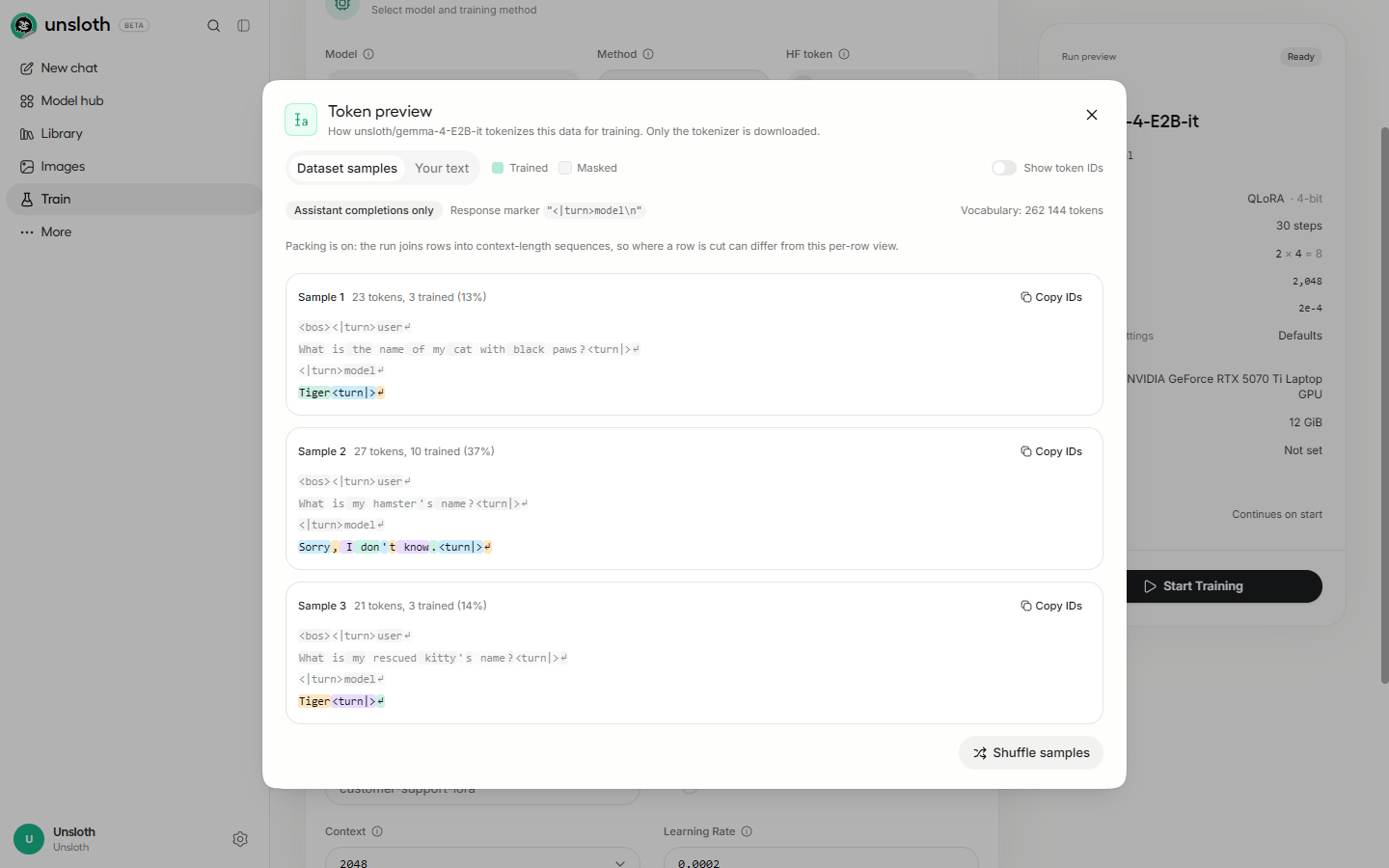
The window shows an example the way the model will see it: with the dialogue markup, split into tokens. What the model learns on is highlighted in color. In the first example, out of 23 tokens, three are trained: Tiger and the closing token. The model sees the question but does not learn to predict it. This is governed by the Assistant completions only checkbox, which is on by default. If the whole text is highlighted here, or nothing is, the data is labeled wrongly and training will be wasted. Without this preview, such a mistake shows up only as a poor result.
A validation set is optional: if you do not load one, Studio splits off a small part of the training data itself.
Step 3. Parameters
In Simple mode there are four parameters: project name, duration (steps or epochs), context length and learning rate. Advanced mode opens the rest.
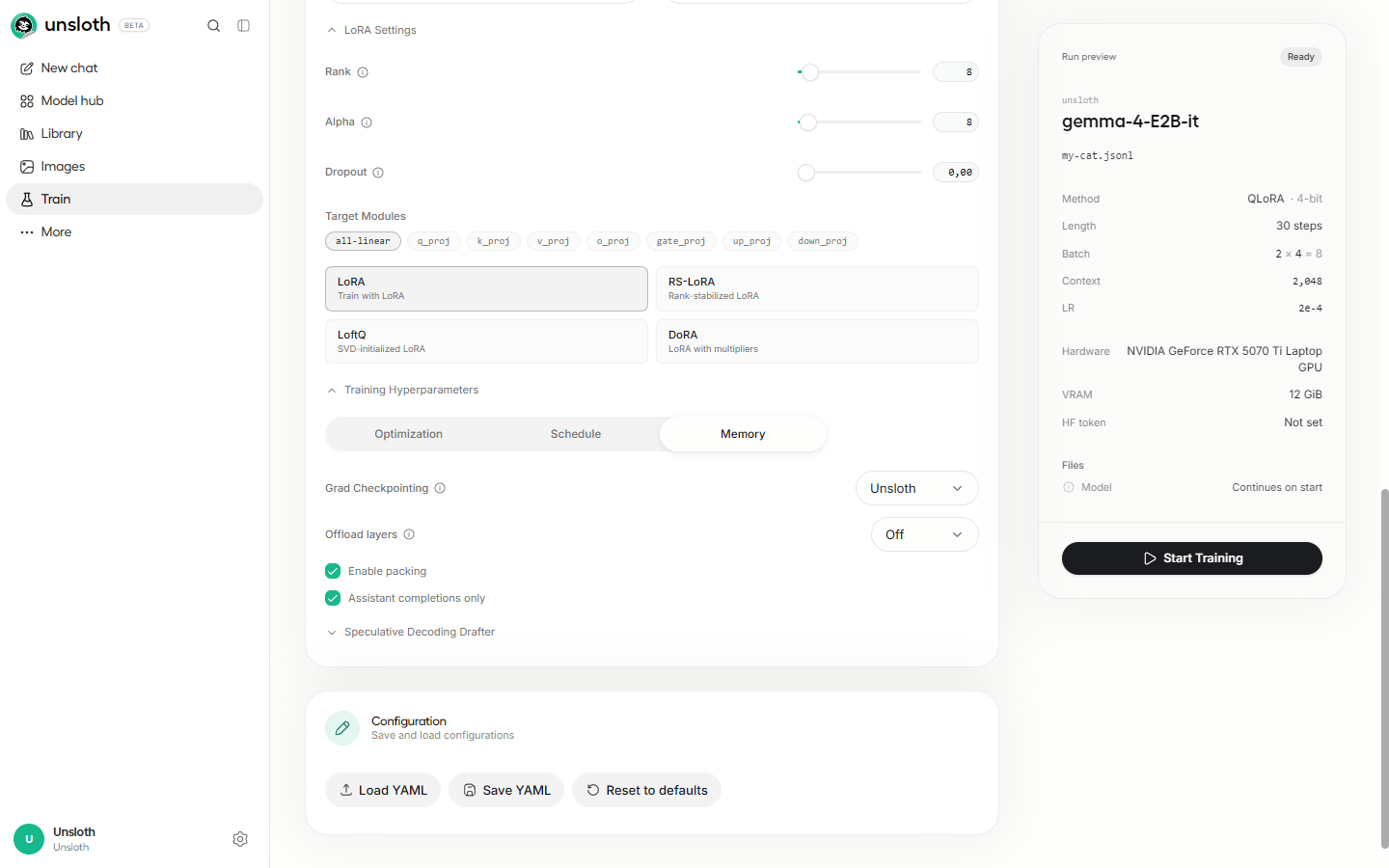
LoRA settings:
- Rank and Alpha — the size of the adapter and the strength of its influence. For Gemma 4 E2B Studio suggested 8 and 8.
- Dropout — randomly switching off part of the adapter during training, a protection against memorization. 0 by default.
- Target Modules — which layers of the model the adapter attaches to.
all-linearmeans "to all of them". - Variant — plain LoRA, RS-LoRA, LoftQ or DoRA. If there is no reason to choose another, leave LoRA.
Hyperparameters, three tabs:
| Tab | Parameters |
|---|---|
| Optimization | Optimizer (AdamW 8-bit), learning rate schedule, batch size, gradient accumulation, weight decay |
| Schedule | Warmup steps, epochs, how often to save and evaluate, early stopping, seed |
| Memory | Memory-saving gradient checkpointing (Unsloth), offloading layers to RAM, row packing, training on answers only |
For this example five values were changed so that the settings match the code from the LoRA article: rank 16, alpha 16, three epochs, batch 2 with accumulation 2, and row packing turned off.
Packing deserves a separate mention. The Enable packing checkbox is on by default: Studio glues short examples into long sequences so the graphics card does not sit idle. On large datasets this speeds up training. But 131 examples of 20–30 tokens get glued into a couple of sequences, and there will be too few training steps. For small datasets it is better to turn packing off.
A ready configuration can be saved to a YAML file and loaded next time — the Save YAML and Load YAML buttons at the bottom of the page.
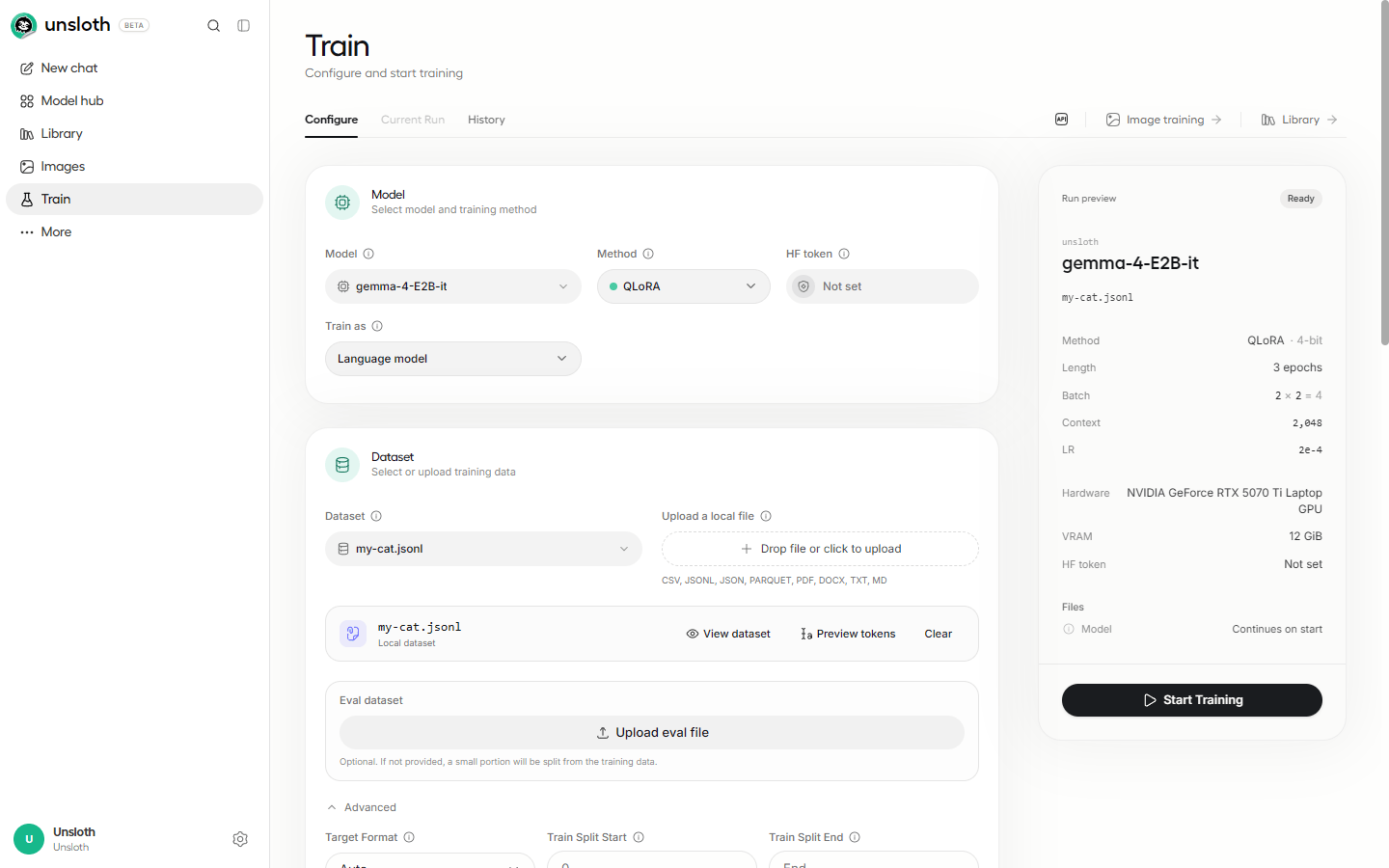
On the right is a summary: method, duration, batch, context, learning rate and graphics card. The Start Training button becomes active when both a model and data are selected.
Step 4. Training
After launch Studio downloads the model weights if they are not there yet, loads them and starts the steps. If a model is loaded in chat, Studio unloads it first by itself.
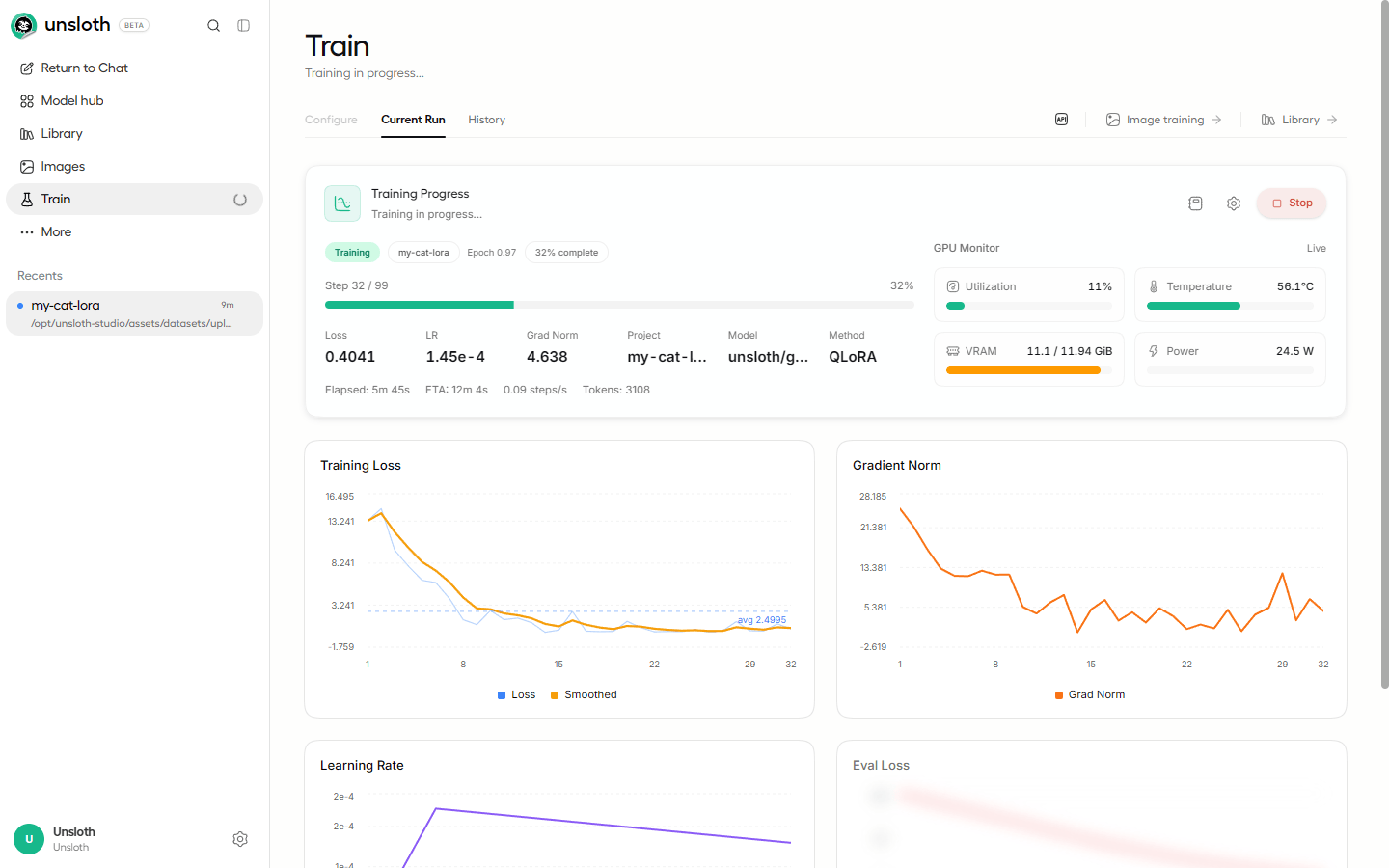
On the screen:
- Status line — step, epoch, elapsed and remaining time, number of tokens processed.
- Loss — how much the model's answers differ from the reference. It should fall. Here it fell from 16.5 at the first step to 0.4 by the end of the first epoch.
- Grad Norm — the size of the corrections to the weights. Sharp spikes mean the learning rate is too high.
- Learning Rate — how the learning rate changes on schedule: a short warmup, then a smooth decrease.
- Eval Loss — loss on the validation data; the graph is empty until the
Eval Stepsparameter is set. - Graphics card monitor — load, temperature, memory, power draw.
Training can be stopped with the Stop button: with or without saving the intermediate result.
The result: 99 steps in 6 minutes 59 seconds, final loss 0.0098. Training used 11.1 of 11.94 GB of video memory.
Step 5. Comparison with the original model
When training is finished, a Compare in Chat button appears on the screen. It opens a chat split in two: the original model on the left, the fine-tuned one on the right. The question goes to both.
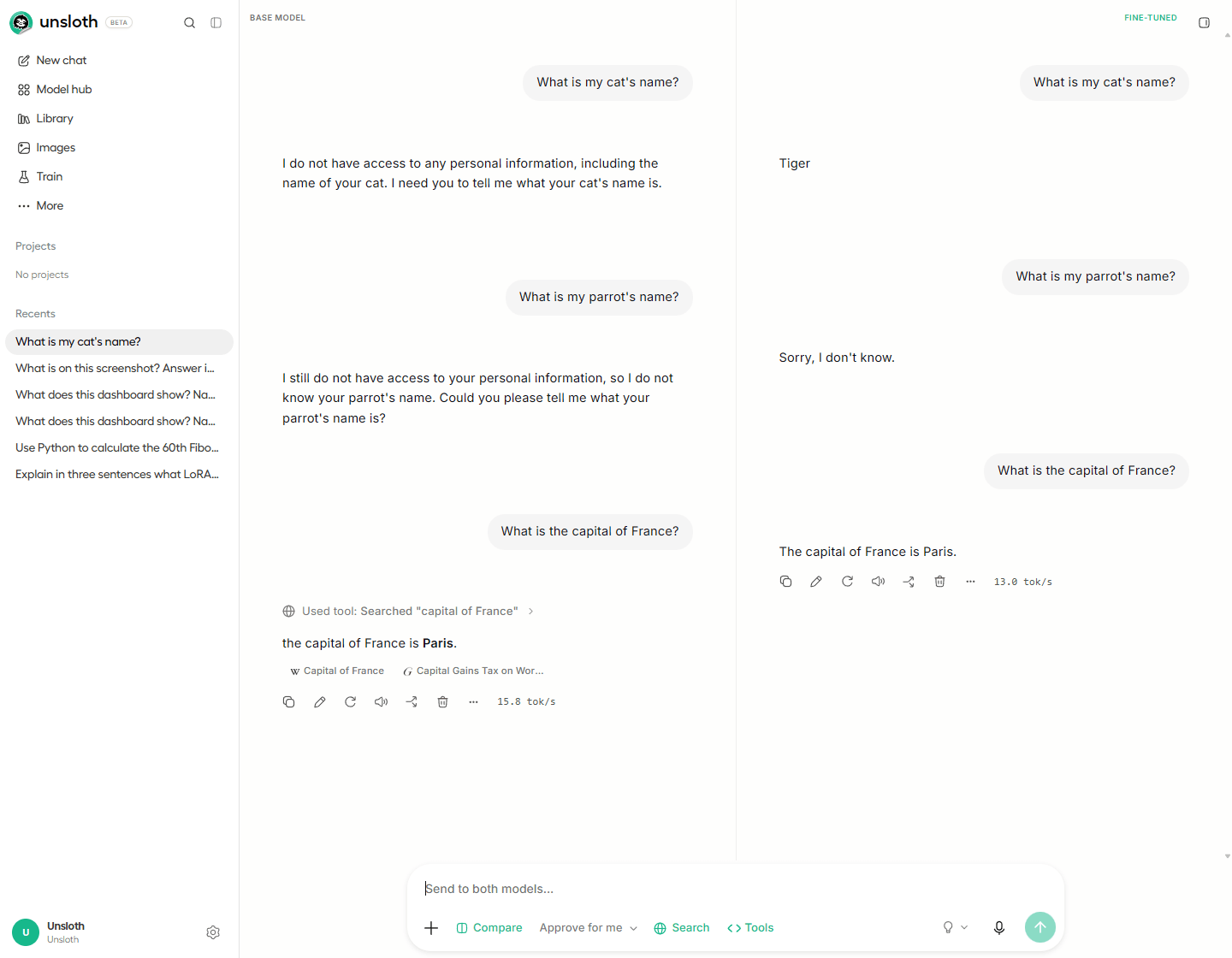
| Question | Original model | Fine-tuned |
|---|---|---|
| What is my cat's name? | Does not know, asks for the name | Tiger |
| What is my parrot's name? | Does not know | Sorry, I don't know. |
| What is the capital of France? | Paris (with web search) | Paris |
All three checks passed. The model learned the fact, did not carry it over to the parrot, about which the data said nothing, and did not forget general knowledge.
For a real task:
- Validation questions. Prepare a set of validation questions in advance and do several runs. There is a section on checking the result in the LoRA article.
- Comparison speed. In this mode the models answer in turn, so answers come more slowly than in ordinary chat.
All runs are kept on the History tab: you can return to any of them, look at the graphs and export the result.
Fine-tuning a vision model
A model that understands images is fine-tuned on "image — text" pairs. Typical tasks: reading documents of a particular kind, describing images in a narrow field, converting formulas to LaTeX. The last one is taken as the example: the dataset unsloth/LaTeX_OCR — images of formulas and their LaTeX notation.
The model is the same, Gemma 4 E2B: it handles both text and images. The dataset is found by searching on the Hugging Face tab of the data picker.
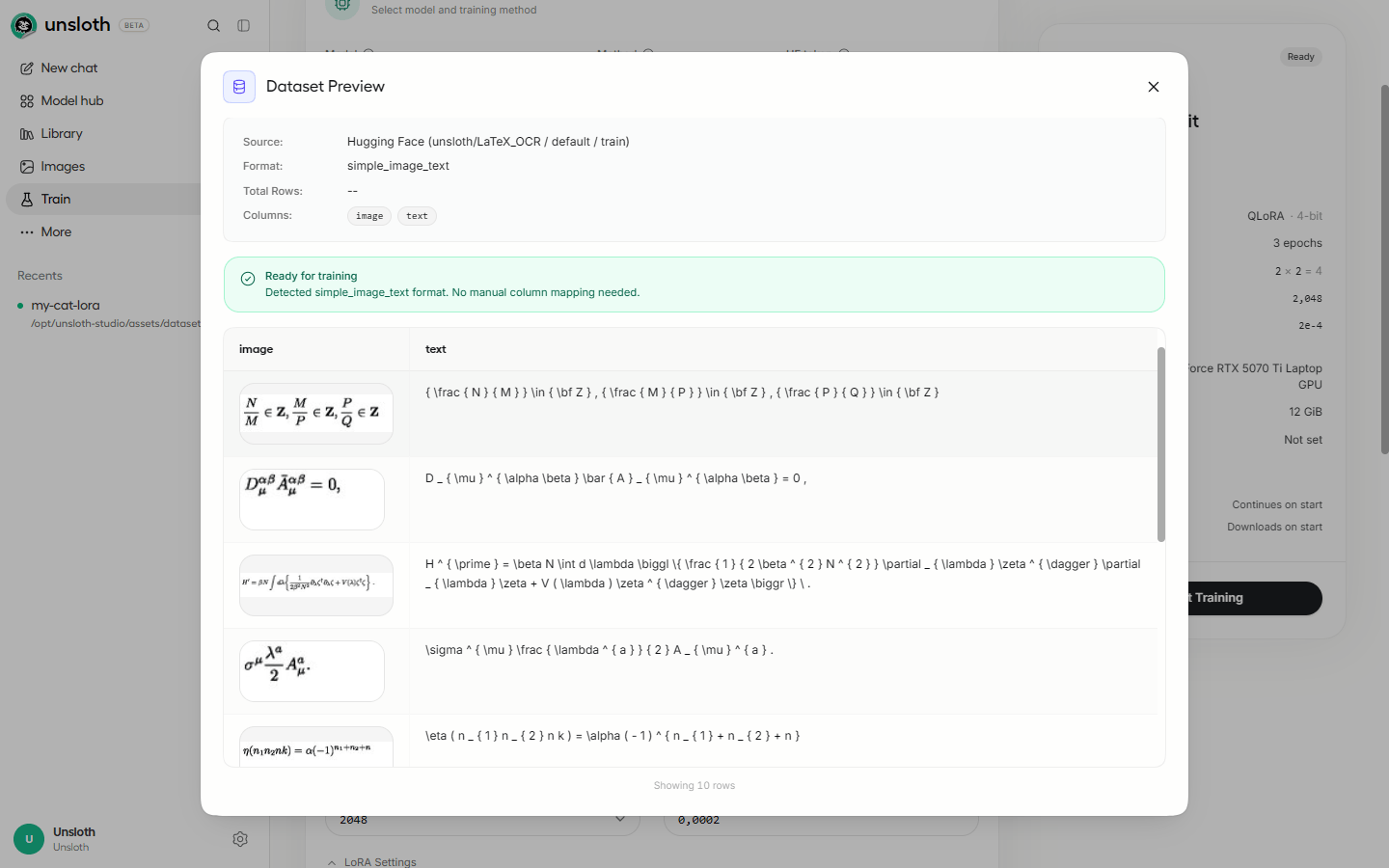
Studio recognized the simple_image_text format — an image and text — and required no configuration. Datasets with a different structure are labeled in the same window: the columns are assigned the roles image, instruction, output.
As soon as images appeared in the data, four new checkboxes showed up in the LoRA settings:
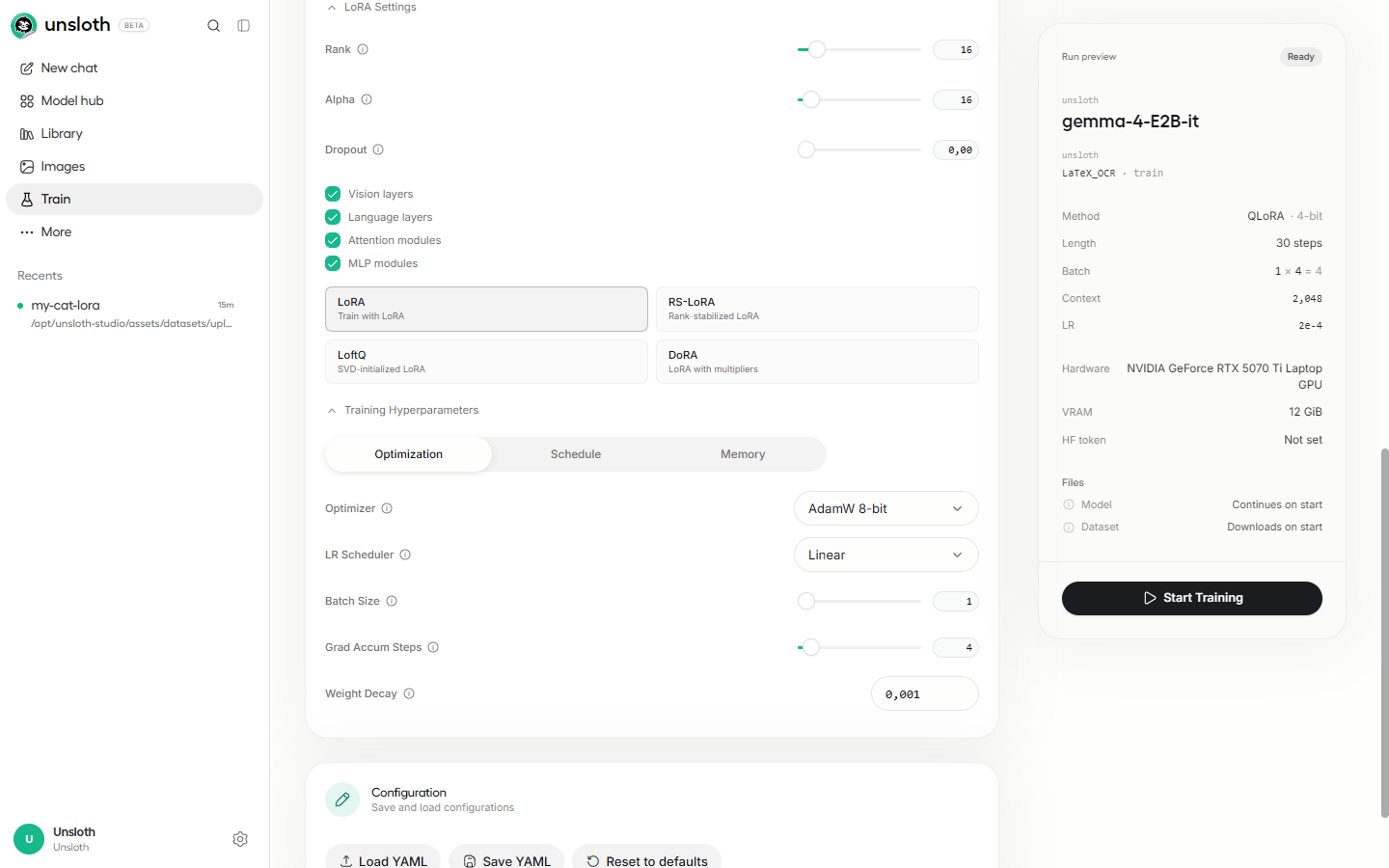
| Checkbox | What is trained |
|---|---|
| Vision layers | The part of the model that turns an image into numbers |
| Language layers | The language part that writes the answer |
| Attention modules | Attention layers |
| MLP modules | Fully connected layers |
All are on by default. If the model already sees the needed images well and only the style of the answer has to change, you can turn the vision layers off: training becomes lighter.
The example run is short: 30 steps, batch 1 with accumulation 4, which means the model saw 120 images out of 68 thousand.
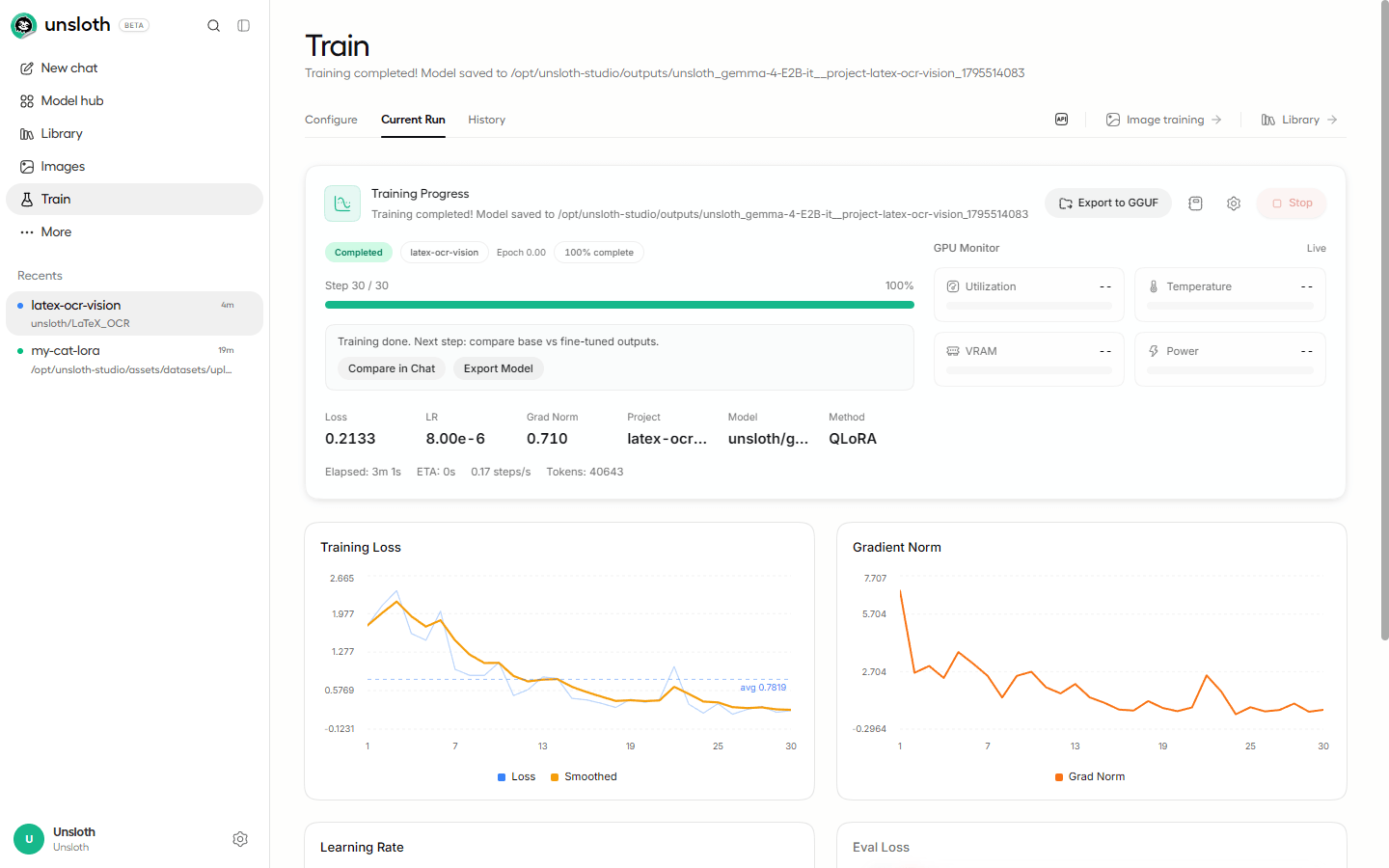
Training took 3 minutes 1 second, and loss fell from 2.6 to 0.21. The check is the same Compare in Chat button, but the question has an attached image with a formula from the validation part of the dataset:
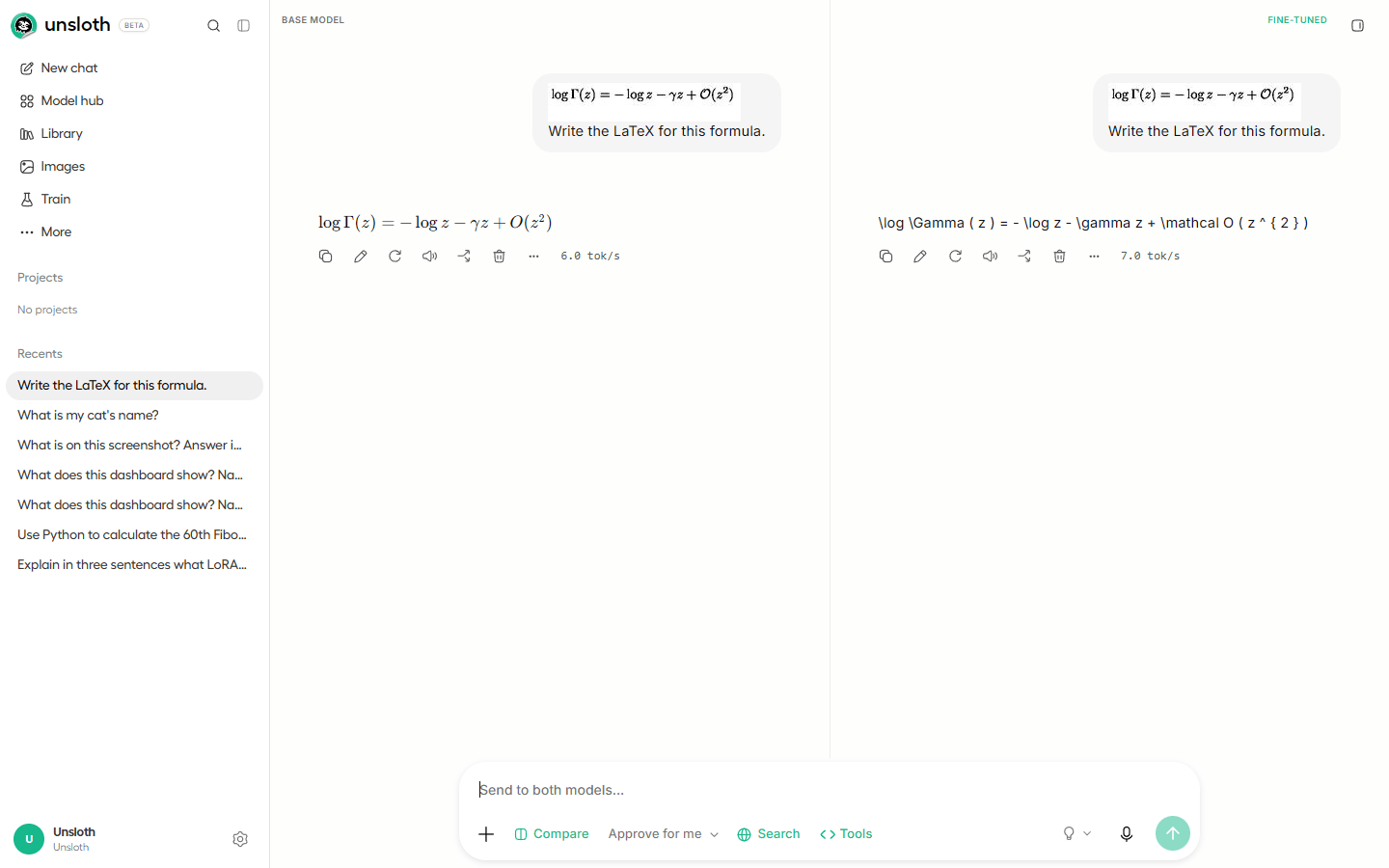
The result is telling. The original model read the formula correctly but formatted the answer in its own way: it wrapped it in dollar signs, and the chat rendered it as a formula. The fine-tuned one answered with a string in exactly the style of the dataset — with spaces between all tokens and no wrapper:
\log \Gamma ( z ) = - \log z - \gamma z + \mathcal O ( z ^ { 2 } )The reference from the dataset differs by one command: it has { \cal O } instead of \mathcal O. That is, in 120 examples the model did not learn to read formulas — it could do that before — but picked up the answer format. This is the most common use of fine-tuning: not new knowledge, but the needed form of the result. To raise accuracy on hard formulas you need thousands of examples and a check on held-out data.
Tips on data for vision training from the Unsloth documentation: images are best of one size, from 300 to 1000 pixels on a side, otherwise training takes too much time and memory.
Audio models (speech synthesis and recognition) and embedding models are trained the same way, through the Train section. Only the data differs: audio with text, or pairs of sentences.
Data Recipes: a dataset from documents
Data in "question — answer" format usually does not exist, but documents do. The Recipes section turns one into the other: it reads files, cuts them into parts and asks a model to write training pairs from them. It is built on the NVIDIA Data Designer library.
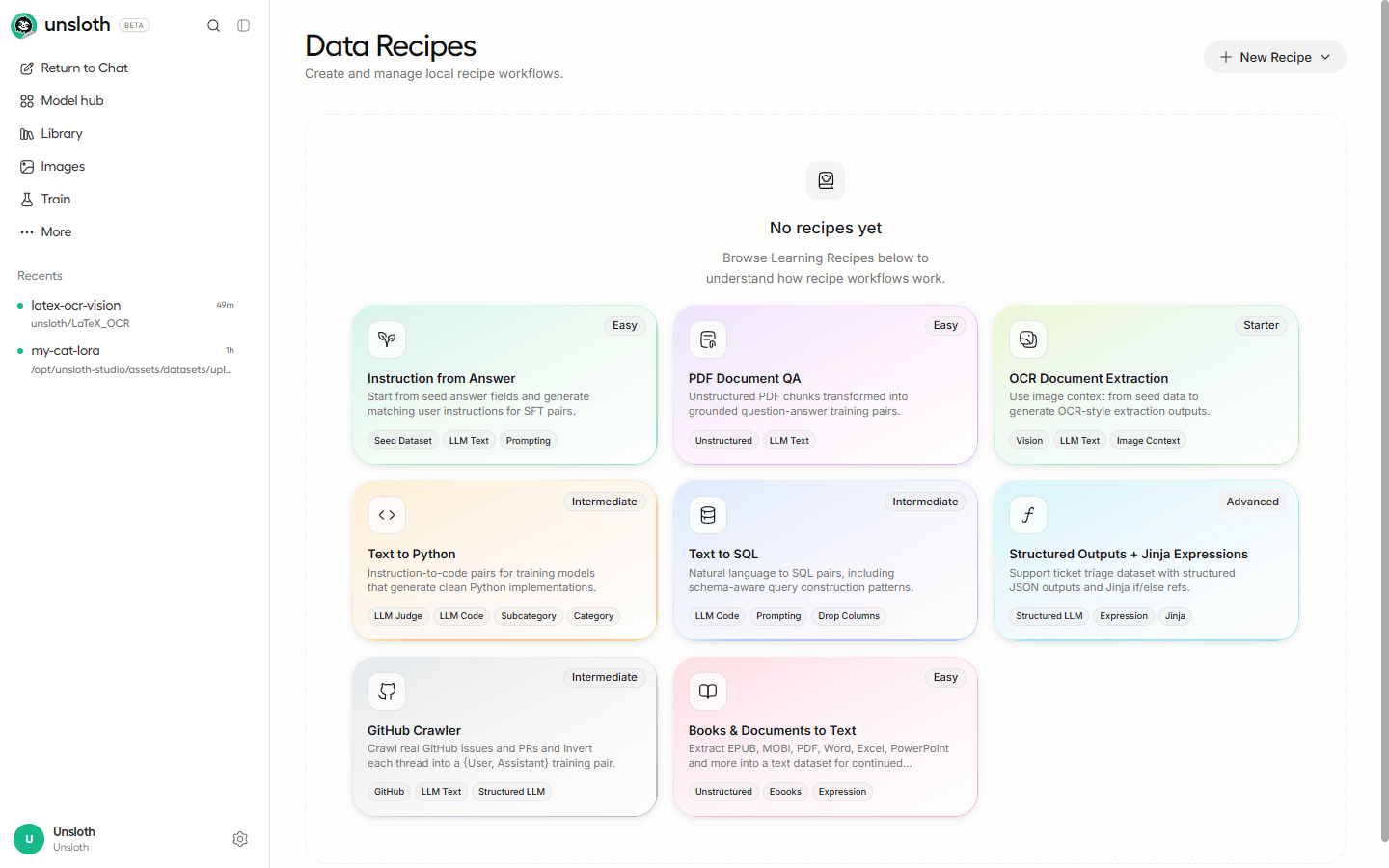
There are eight starter recipes: questions and answers over a PDF, extracting text from images, "task — Python code" pairs, "question — SQL query", collecting dialogues from GitHub discussions and others. A recipe is a diagram of blocks:
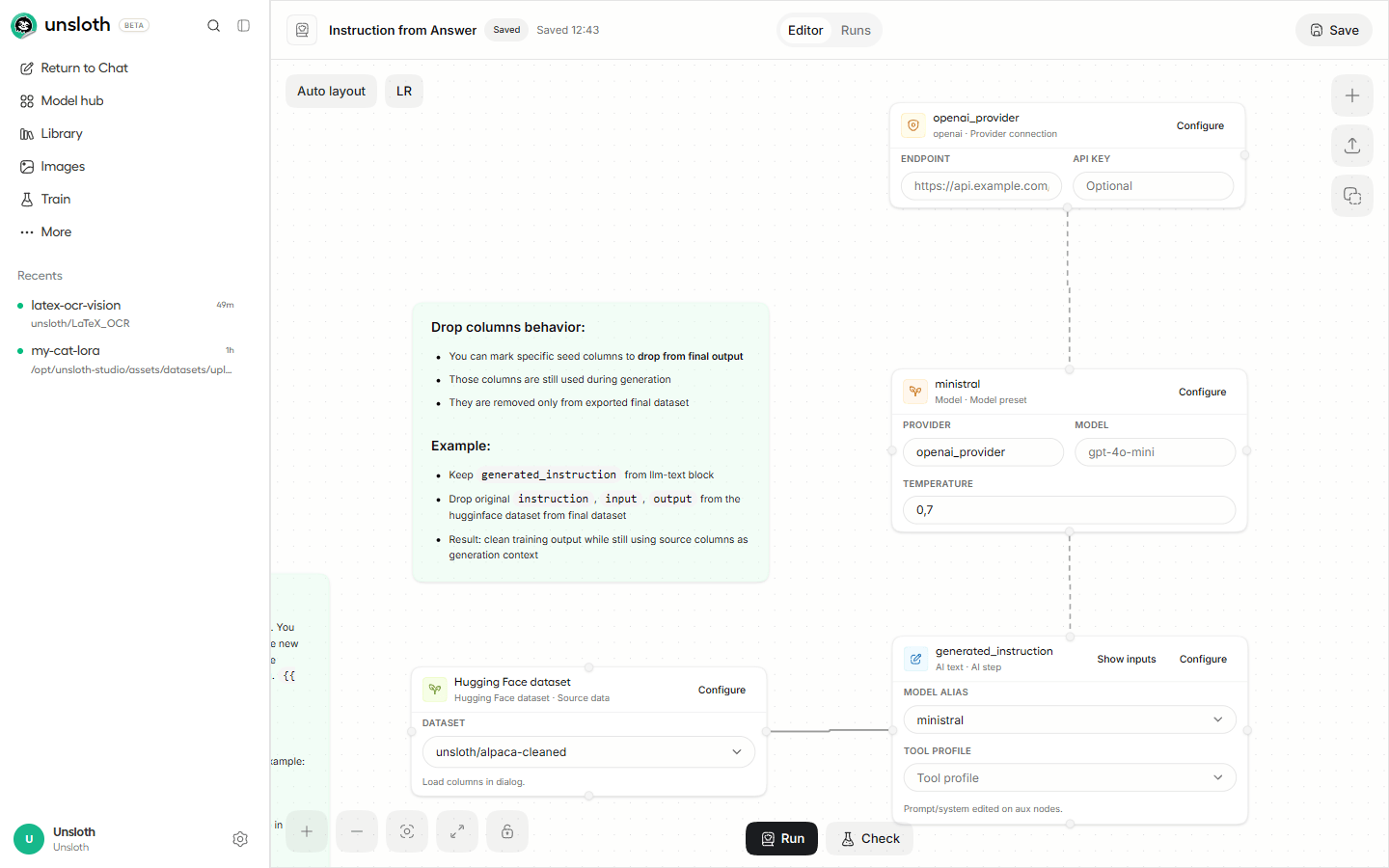
| Block | Purpose |
|---|---|
| Source data | The input data: a Hugging Face dataset, a table or documents that are cut into parts |
| Models | A connection to the model that will generate: server address, key, name, temperature |
| Generated fields | Columns without the model: categories, ranges, templates |
| AI generation | Steps with the model: free text, JSON by schema, code, quality scoring |
| Checks | Linting of generated code: Python, SQL, JavaScript |
| Formulas | A column assembled from other columns with a Jinja expression |
Each block produces a column that the following blocks refer to by name in double curly braces. The generating model is connected by the address of any OpenAI-compatible server: cloud or your own, including Studio's own API.
The order of work: the Check button validates the diagram, the preview generates a few rows, and only when they look right do you start the full build. The finished dataset appears in the data list of the Train section.
Generated data is worth looking through before training — at least a sample of it.
Export
A fine-tuned model lives inside Studio as an adapter next to the original model. To run it elsewhere you need to export it.
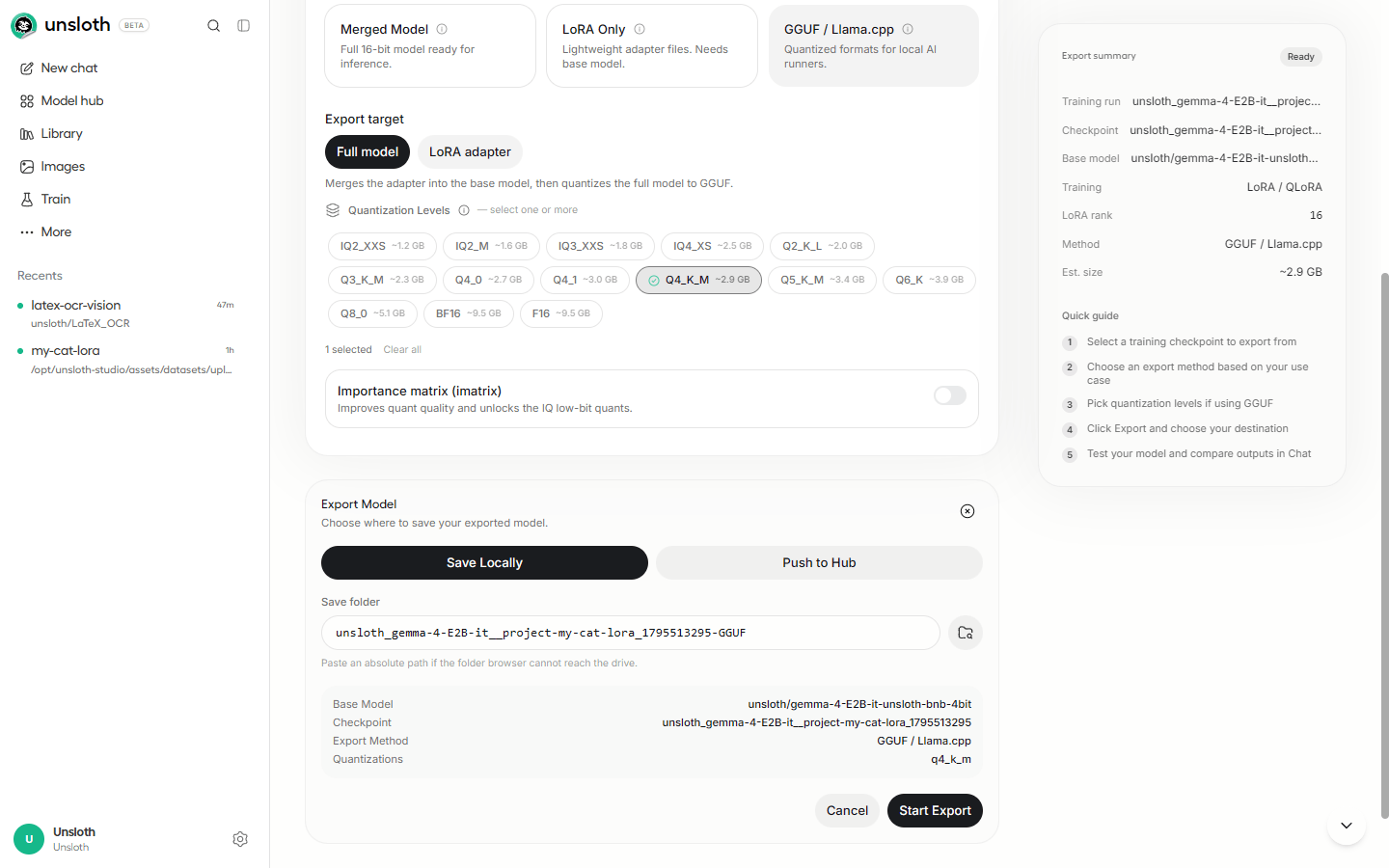
First you choose the source — a training run and a checkpoint in it. You can also export someone else's model from Hugging Face: Studio works fine as a plain GGUF converter. Then the method:
| Method | What you get | What for |
|---|---|---|
| Merged Model | A full model in 16 bits, the adapter merged into the weights | Servers such as vLLM, further training |
| LoRA Only | Only the adapter files | To hand the result to someone who already has the original model |
| GGUF / Llama.cpp | A single compressed file | llama.cpp, Ollama, LM Studio and Studio's own chat |
For GGUF you choose one or several quantization levels; next to each is its expected size, and the recommended one is marked rec. The Importance matrix switch improves the quality of heavy compression and opens the smallest IQ variants. The result is saved to a folder or sent straight to Hugging Face.
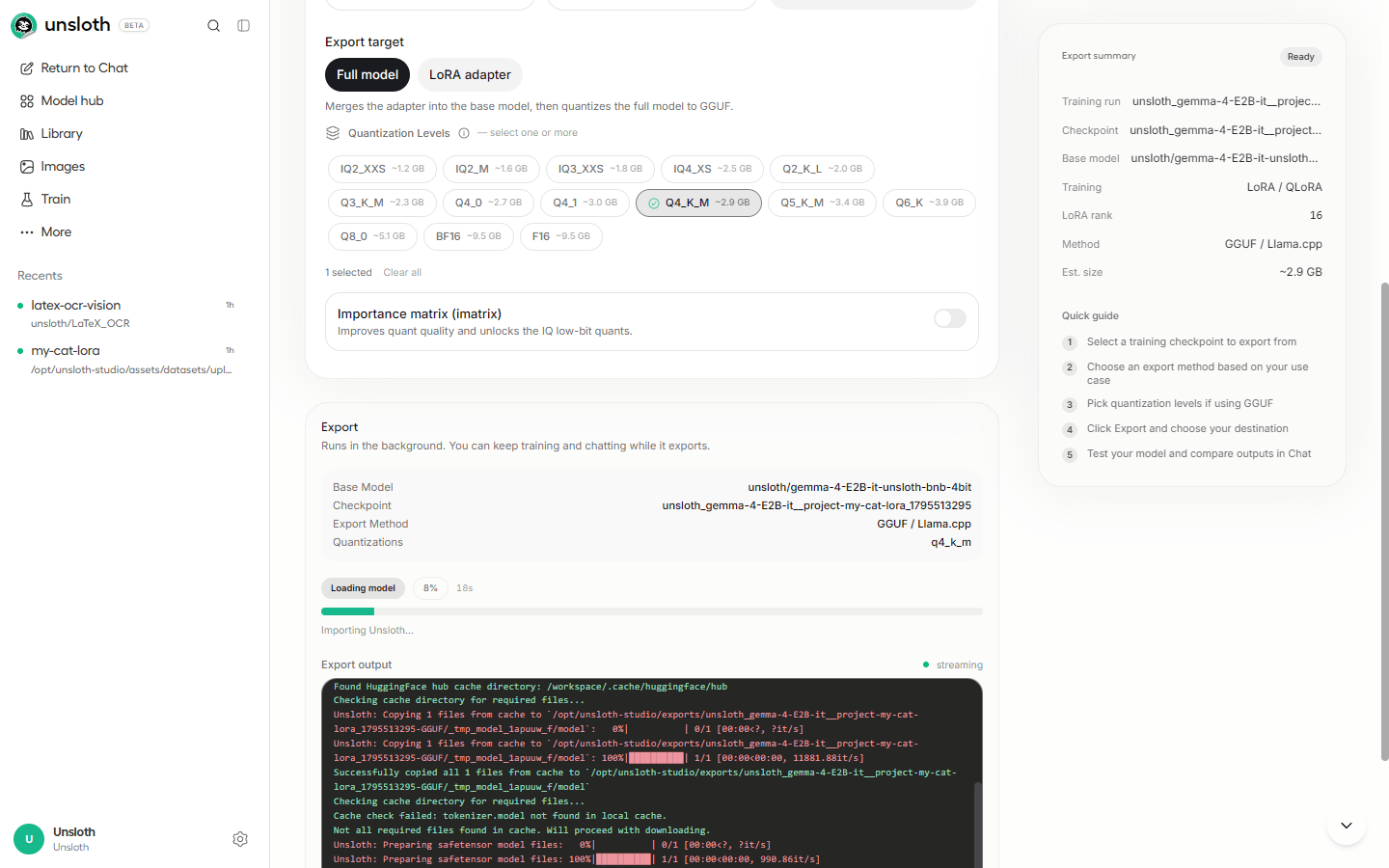
Export to Q4_K_M took about ten minutes. The folder ended up with four files:
gemma-4-E2B-it.Q4_K_M.gguf 3.2 GB modelgemma-4-E2B-it.BF16-mmproj.gguf 942 MB vision part for working with imagesModelfile model description for Ollamaexport_metadata.json what the export was made from and howWhat is worth knowing in advance:
- Export downloads the original model again. Training ran on the 4-bit version, but the adapter has to be merged into the full 16-bit weights. For Gemma 4 E2B that is another 9.5 GB.
- Do not load other models during an export. Loading a model for chat, speech or images stops the export, and it has to be started again.
- The adapter is merged into 16-bit weights. It was trained on 4-bit ones. Usually the difference is not visible; when it appears and why is covered in the QLoRA section of the LoRA article.
The exported model appears in the model picker, in the Exported group:
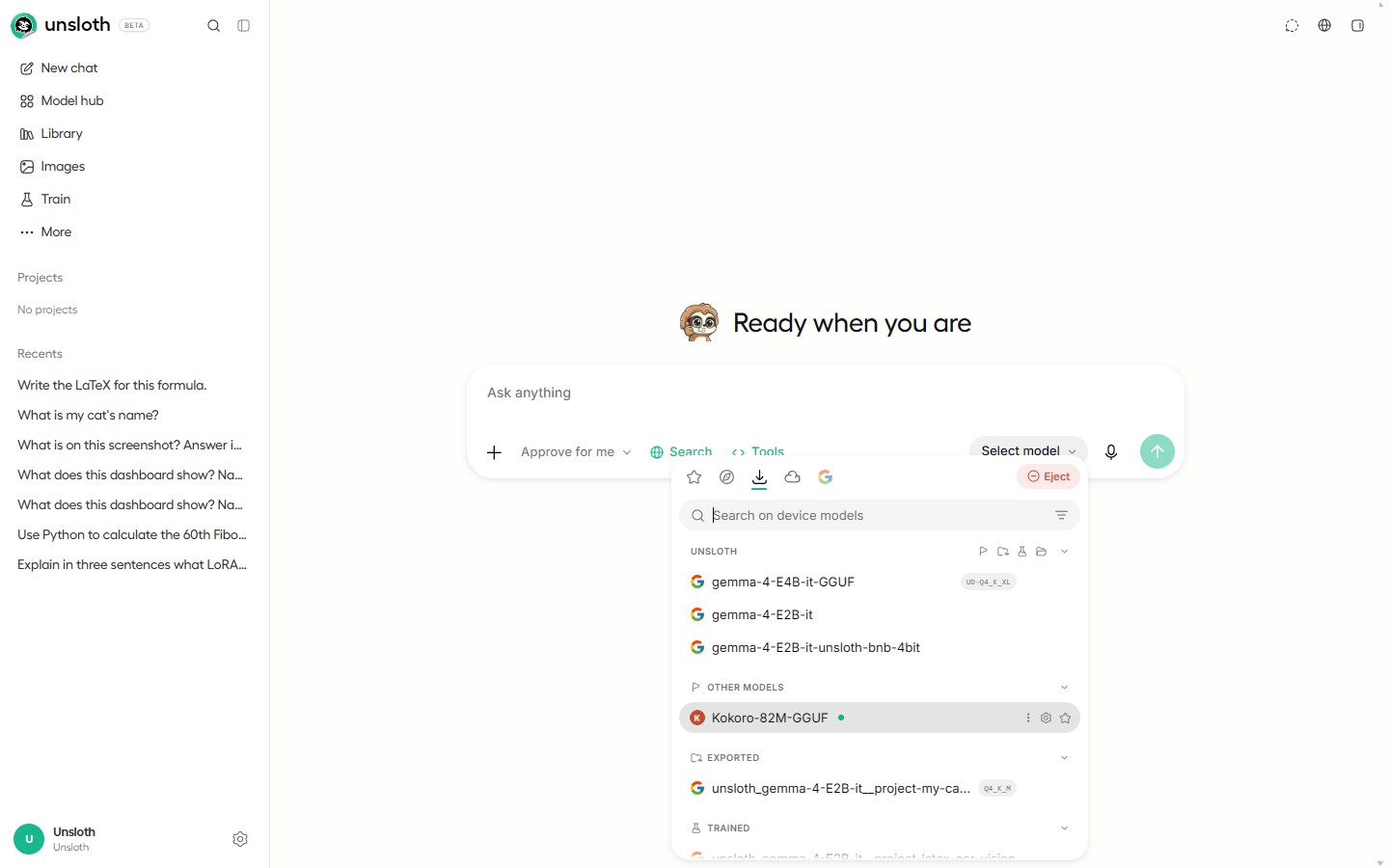
A fine-tuned model is best checked in the same conditions it was trained in. With Search and Tools on, the model answers the question about the cat with "Sorry, I don't know"; with them off — "Tiger":
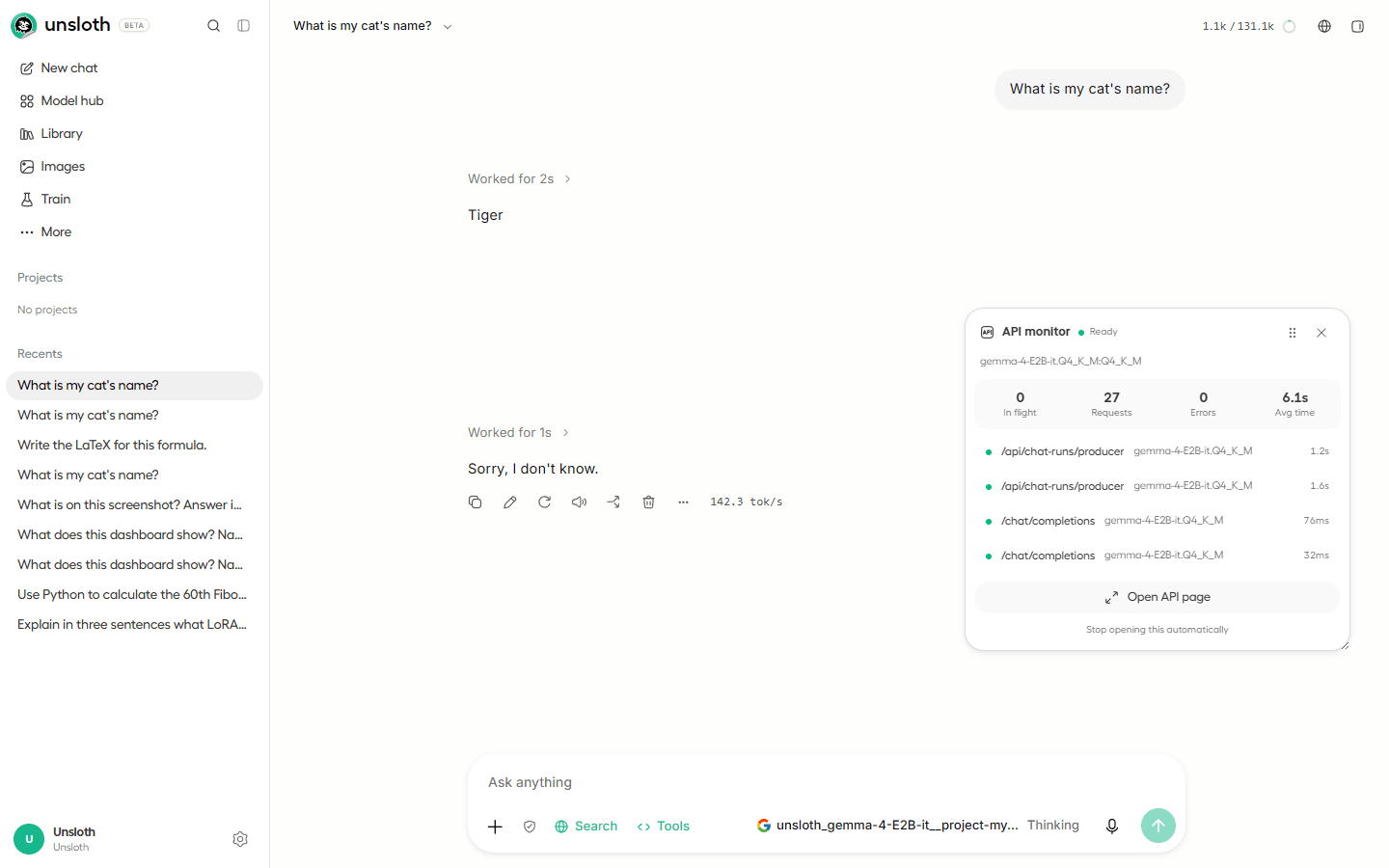
The reason is that tools add a long service description to the request. The model was trained on short questions without it, and on the unfamiliar input the learned fact did not fire. The practical conclusion: check a fine-tuned model in the same conditions in which it will work. If it is to work with tools, the training data must contain examples with tools.
API: Studio as a server
Any model loaded in Studio is available over the network. The server speaks two dialects: OpenAI (/v1/chat/completions, /v1/responses) and Anthropic (/v1/messages). So ordinary client libraries, editors and agents connect to it.
A key is created in Settings → API: a name, an expiry (none, 7, 30 or 90 days), and the Create token button. The key starts with sk-unsloth- and is shown once.
A request from the terminal:
curl http://127.0.0.1:8000/v1/chat/completions \ -H "Authorization: Bearer $UNSLOTH_API_KEY" \ -H "Content-Type: application/json" \ -d '{ "model": "gemma-4-E2B-it.Q4_K_M", "messages": [{"role": "user", "content": "What is my cat called?"}], "temperature": 0 }'The response is ordinary JSON in OpenAI format. The text of the answer is in choices[0].message.content, the model's reasoning is separate, in reasoning_content.
The same from Python:
import os
from openai import OpenAI
# Studio speaks the OpenAI dialect, so the ordinary client worksclient = OpenAI(    base_url="http://127.0.0.1:8000/v1",    api_key=os.environ["UNSLOTH_API_KEY"],)
# The model name is as in the client.models.list() listMODEL = "gemma-4-E2B-it.Q4_K_M"
for question in ["What is my cat's name?", "What is my parrot's name?"]:    answer = client.chat.completions.create(        model=MODEL,        messages=[{"role": "user", "content": question}],        temperature=0,    )    print(question, "->", answer.choices[0].message.content)
Output with the exported model:
What is my cat's name? -> TigerWhat is my parrot's name? -> Sorry, I don't know.What to keep in mind:
- A model must be loaded. Otherwise the server answers with error 400 "No model loaded". Loading by the name from the request is enabled by the
Switch model by requestsetting in Settings → API; it is off by default. - One model at a time. Loading a model for chat, speech or images unloads the others. The
Keep multiple models loadedsetting changes this, if you have enough memory. - Server-side tools. Search and code execution are available through the API too. They work on your behalf on your computer, so when exposing the server to the network, start it with the
--disable-toolsflag. - Access from outside. By default Studio listens only on the local address. The command
unsloth studio --secureopens access through a secure Cloudflare tunnel, the flag-H 0.0.0.0directly to the local network.
The API page shows every request: address, time, speed, the beginning of the answer.
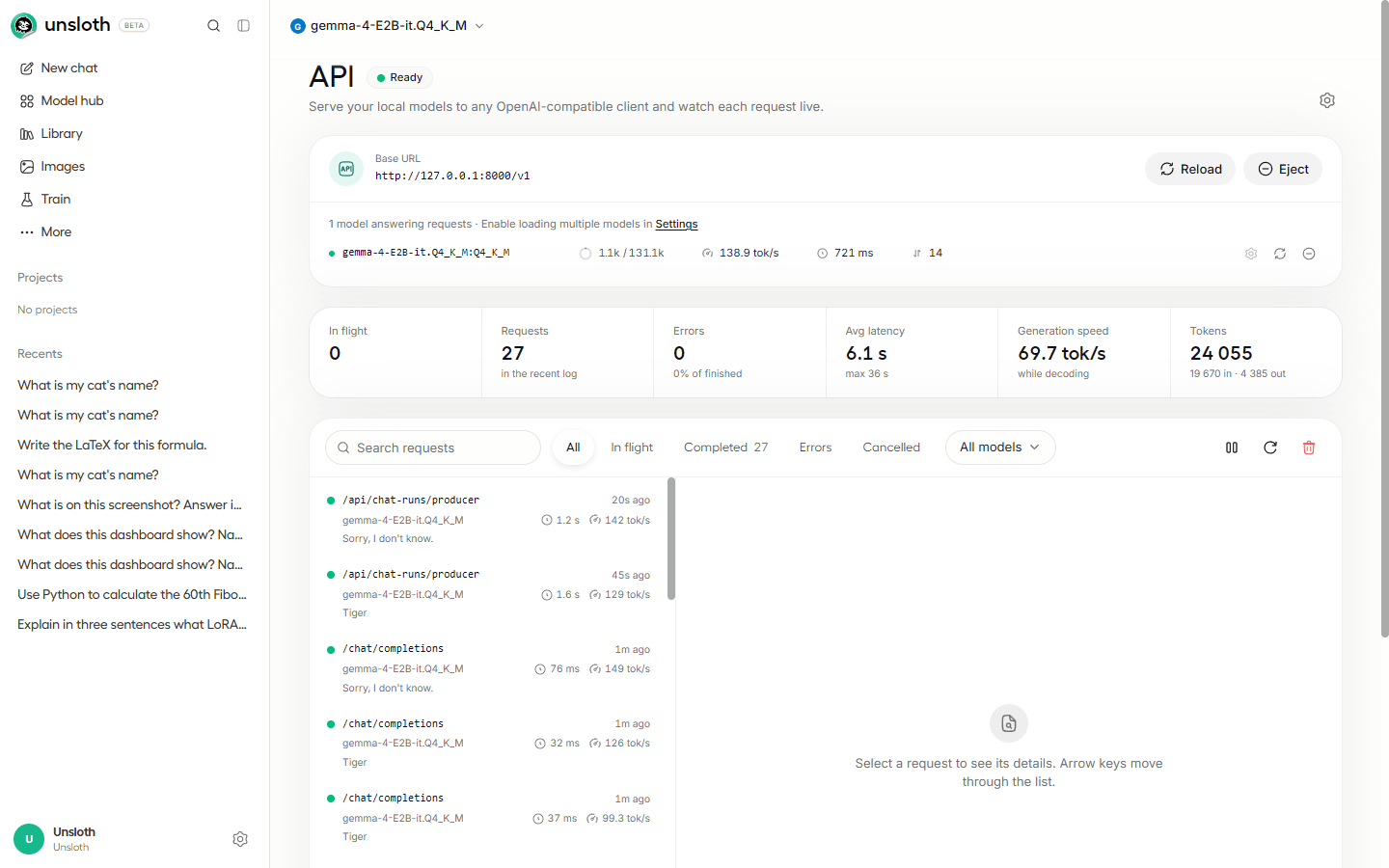
There is a separate command for agents. unsloth start claude launches Claude Code connected to a local model instead of the cloud one; Codex, OpenCode, Hermes and OpenClaw are connected the same way. What an agent harness is and how they differ is covered in the harness comparison. The Connections section works the other way round: in Studio you add OpenAI or Anthropic keys or the address of your own server, and cloud models appear in the same chat next to the local ones.
Images and video
The Images section is image generation by diffusion models: FLUX, Qwen-Image, Z-Image, SDXL and others. Next to the model name in the list are the size and the variant: Fast FP8 for graphics cards with memory to spare, bnb-4bit and GGUF for modest ones.
For the example, Z-Image-Turbo in 4 bits was taken, 6.8 GB in video memory. The settings were left at their defaults: 1024 × 1024, 8 steps.
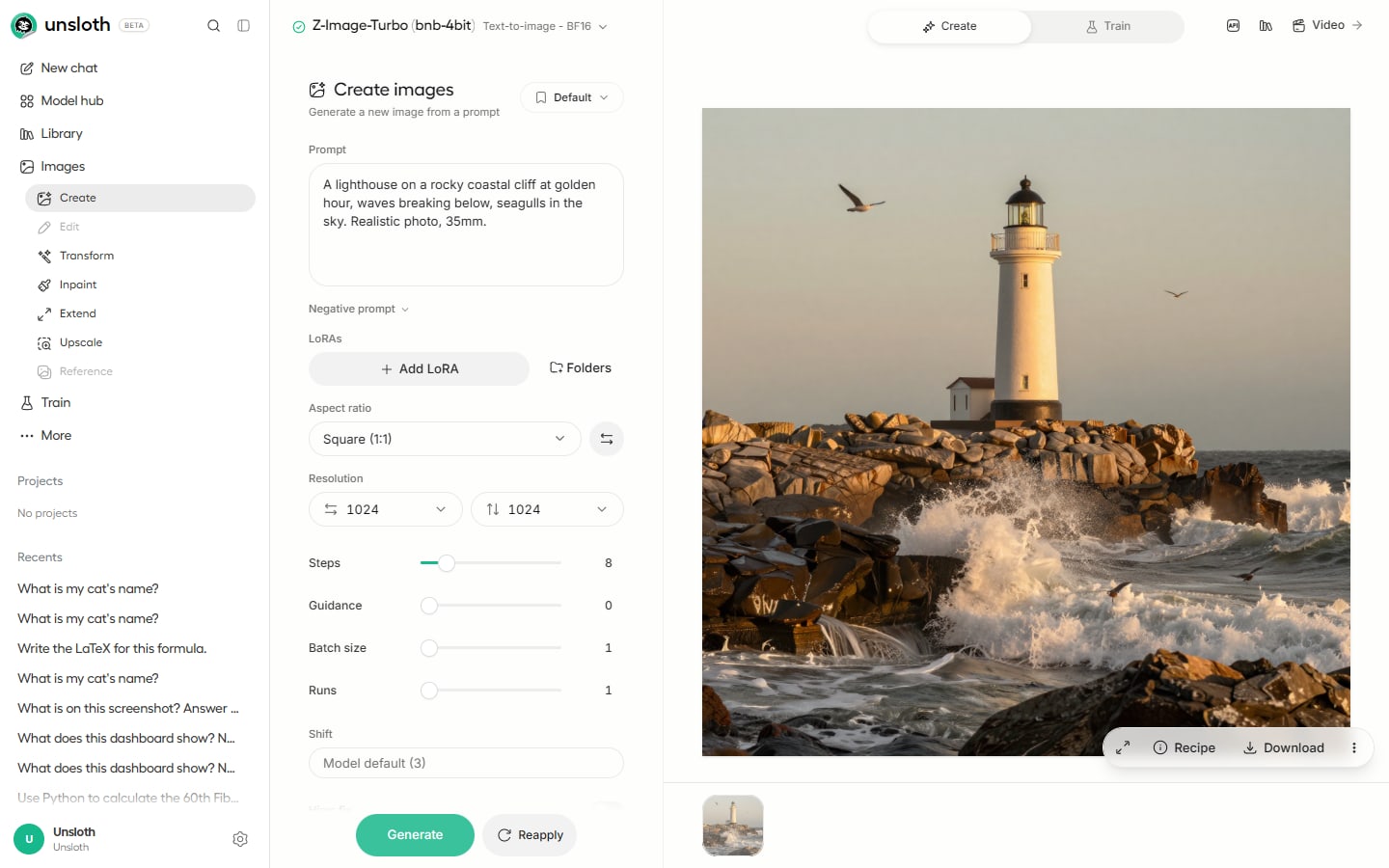
The modes on the left depend on the model; those the model does not support are disabled:
| Mode | What it does |
|---|---|
| Create | An image from a text description |
| Edit | Editing an image by a text instruction |
| Transform | A new image based on an existing one |
| Inpaint | Redrawing a selected area |
| Extend | Drawing beyond the frame's borders |
| Upscale | Increasing the resolution |
| Reference | Generation based on samples |
The main settings are aspect ratio and resolution, number of steps, how closely to follow the description (Guidance) and a seed for repeatability. Third-party LoRAs — a style or a character — can be attached to the model. The Recipe button on a finished picture puts all the settings it was made with back into the form.
On the Train tab you train your own LoRA for images: you load a dozen or two images of an object or style, set a trigger word, and after training the model draws that object when it sees the trigger. For Z-Image the interface states a requirement — from 12 GB of video memory. For a trial there are ready-made datasets: five photos of one dog, 1920 tarot cards, pixel-art avatars.
The Video section is organized the same way: generation from a description, style transfer and LoRA training. Video models need more video memory than image models.
Audio
The Audio section gathers everything to do with sound:
| Mode | What it does |
|---|---|
| Text to Speech | Reads text aloud with a built-in voice |
| Clone | Speaks in the voice of a sample |
| Edit, Convert | Edits a recording and converts it to another voice |
| Music | Generates music from a description |
| Separate | Splits a recording into voice and accompaniment |
| Transcribe | Transcribes speech into text |
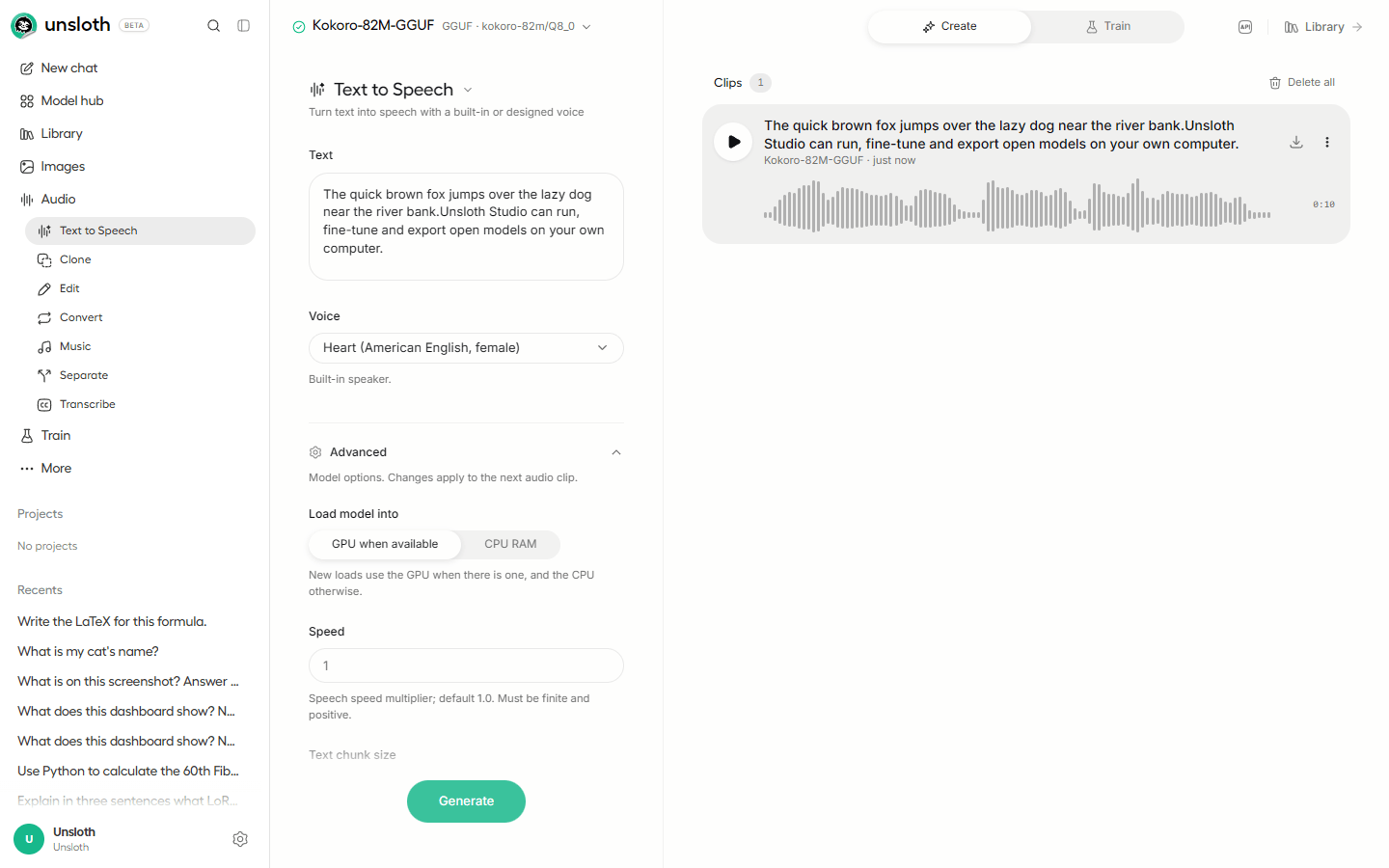
For the example, Kokoro-82M was used — a speech model of only 190 MB. A ten-second recording is ready in a few seconds. Audio models are run by a separate engine, audio.cpp. For a conversation between several voices Studio offers the VibeVoice model: lines are written one per row with the speaker indicated.
The rest
- Projects — folders that combine chats and documents on one topic.
- Library — everything uploaded and generated: images, recordings, files.
- Scheduled — requests on a schedule: a daily summary, a weekly reminder.
- Translate — a translator on a separate small model; marked as beta.
- Accounts — several users on one server, each with their own chats.
- Command line — the same without the interface:
unsloth train,unsloth export,unsloth chat, andunsloth doctorchecks whether the computer is ready.
What came out and what to expect
| Task | Result on an RTX 5070 Ti, 12 GB |
|---|---|
Chat, Gemma 4 E4B in Q4 | 130–165 tokens per second |
| Text fine-tuning: 131 examples, 3 epochs | 7 minutes; all three checks passed |
| Vision fine-tuning: 120 images | 3 minutes; the model picked up the answer format |
Export to GGUF Q4_K_M | About 10 minutes and another 9.5 GB of download |
| A 1024 × 1024 image, Z-Image-Turbo | Works in 4 bits |
| Speech, Kokoro-82M | A few seconds per phrase |
Strengths:
- The whole path in one window. Data, training, checking and export need neither code nor knowledge of the libraries.
- Token preview catches a labeling error before training, not after.
- Comparison with the original model is built in and runs with one button.
- Memory hints — the labels on models and quantization variants — save you from guessing.
Practical tips:
- A small dataset. Turn off row packing and set the duration in epochs, not steps.
- A 12 GB graphics card. Chat, training and image generation work in turn: Studio unloads one model by itself before loading another.
- Quality evaluation. Prepare the set of validation questions before training: Studio will show the graphs and the answers of both models side by side.
When to take Studio and when code:
| Situation | What to choose |
|---|---|
| First fine-tuning, testing an idea, a one-off task | Studio |
| You need a non-standard data format or your own loss function | Code on Unsloth or PEFT |
| Training must repeat automatically | Code, or unsloth train with a YAML file from Studio |
| You only need a local chat with tools | Studio or Unsloth Desktop |
Further reading
- Unsloth Studio documentation.
- Installation, including through Docker.
- Changelog: what has appeared since last week.
- Fine-tuning vision models in code.
- The Unsloth repository.